
Settings
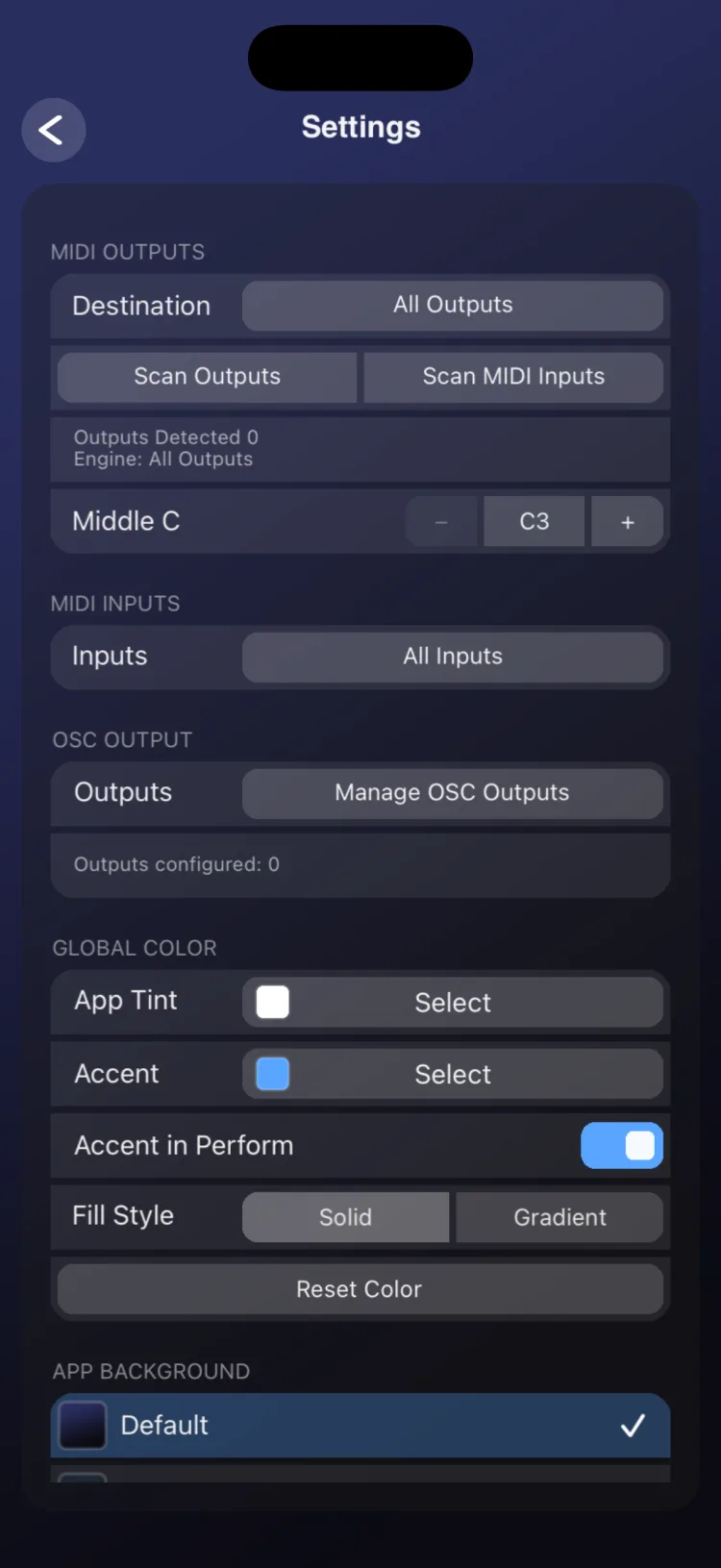
Settings gathers everything that applies to the whole app: where MIDI goes, which inputs the clock listens to, the OSC outputs, how notes are named, the app’s color and background, and backups. Use it to connect RigAstra to your gear once, give it your own color, and back up or move all your work to another device.
To open it, tap the gear in the scene list. Changes are saved automatically.
MIDI Outputs
- Destination opens the list of detected MIDI destinations, labeled [USB], [BLE] (Bluetooth) or [NET] (network). You can select several destinations at once, and MIDI goes out to all of them, or choose All Outputs. Each tap applies right away and cuts off any notes that are sounding. Below, the number of detected outputs is shown.
- If you don’t choose any, RigAstra picks one automatically, preferring USB, then network, then Bluetooth.
- The selection is remembered by name: if a device disconnects and comes back, it reconnects on its own without cutting off the notes that were playing.
- Scan Outputs looks for destinations again. Use it if a device you just connected doesn’t appear in the list.
- Scan MIDI Inputs looks for MIDI Clock sources again (see Tempo and clock).
- Network destinations ([NET]) are the connected network MIDI sessions. On iPhone and iPad, RigAstra keeps the system’s network session turned on, so your device shows up on the network for the computer to connect to (see Connect to a computer).
Notes and CCs go out to every selected destination. MIDI Clock goes out to a single destination, with automatic fallback to the next (see Tempo and clock).
MIDI Inputs
Inputs opens the list of detected MIDI inputs and sets which devices the external MIDI Clock is taken from:
| Option | What it does |
|---|---|
| All Inputs | The default. Listens to every input, including ones connected later. |
| Some inputs | Listens only to the ones you select. They’re remembered even while disconnected and reconnect on their own when they come back. |
| None | What you get when you deselect everything. No external device can take over the clock. |
Changes apply immediately. If several devices send clock at the same time, select only the one that should set the tempo. This selection is stored on the device and isn’t included in Export Settings.
Middle C
Sets how middle C (MIDI note 60) is named throughout the app: C3, C4 or C5. The default is C3. It only changes the names shown on pads, keyboards and chords; it doesn’t change the notes that are sent.
OSC Output
Shows how many OSC outputs are set up and the Manage OSC Outputs button, where you create and edit each output with its IP, port and paths. See MIDI and OSC connections.

Global Color
| Option | What it does |
|---|---|
| App Tint > Select | Base color for controls and panels. The picker has grid, spectrum and slider (red, green and blue) views, opacity, an sRGB hex code and saved colors. |
| Accent > Select | Interface accent color: selection in lists, switches that are on, the line under text fields, selection in the Editor and the inspector keyboard. It uses the same picker; the accent is always opaque. The factory accent is blue. |
| Accent in Perform | A switch, on by default. On: the accent also colors Perform highlights, such as pressed keyboard keys. Off: those highlights keep their usual blue. |
| Fill Style | Solid or Gradient fill for controls. |
| Reset Color | Returns the app tint, accent, Accent in Perform and fill style to their factory values. Asks for confirmation. |
The body of a control never uses the accent: it uses its own color, the page’s color or the app tint. Each control can use the global color or its own from the APPEARANCE section of its inspector, with Use Global Color or Custom Color.
App background
Choose from 18 backgrounds: Default (the factory animated background), Midnight, Warehouse, Studio, Steel, Twilight, Dusk Rose, Smoke, Harbor, Amber Dusk, Ember Glow, Copper, Sienna, Embers, Rust and the solid colors Ink, Graphite and Slate.
The chosen background shows in the scene list, in Settings and on the Perform pages whose background is set to Default (see Scenes and pages). It’s included in Export Settings.
Backup
| Option | What it does |
|---|---|
| Quick Start > Restore Scene | Reinstalls the Quick Start factory scene. Asks for confirmation. |
| Export Settings | Creates the file RigAstra_Settings.rigastrasettings with the color, accent, selected MIDI destinations, BPM, middle C, OSC outputs, app background and Drone Pad user chords. |
| Import Settings | Applies a .rigastrasettings file. It replaces the current color, MIDI destinations, BPM, middle C and OSC outputs. If the file includes an app background or Drone Pad chords, it replaces those too (the chords apply to every Drone Pad). |
| Export Scenes | Creates the file RigAstra_Scenes.rigastrascenes with all your scenes. |
| Import Scenes | Opens a single scene (.rigastrascene) or a group (.rigastrascenes) and adds its scenes at the top of the list. It only replaces a scene of yours if you choose to. If a scene in the file has the same name as one you already have, it asks what to do with it: Skip, Keep Both (it comes in as “Name 2”) or Replace; with several, Apply to All answers them all at once. Tapping outside the dialog cancels the whole import. At the end it shows how many were added, replaced and skipped. |
| Restore Backup | Opens a .rigastrascenes file and replaces every scene on the device with the ones in the file. Before doing it, it asks for confirmation and tells you how many scenes will be deleted and how many will be loaded. It also stops the transport, switches back to the internal clock and takes the tempo of the first scene in the backup. |
Restore Backup replaces your whole collection. Before restoring, export your current scenes if you want to keep them.
More about the files and how RigAstra protects your data in Files and backups.
About RigAstra
Shows the app version and a short description. Below it, Help opens this help inside the app, without internet, and the Privacy Policy and Support buttons open RigAstra’s privacy policy and support page in your browser.
Limitations
- Saved Scenes and page, arpeggiator and Drum Player presets are not included in Export Scenes or Export Settings. Presets are exported one by one; Saved Scenes have no export of their own (see Presets).
- The MIDI input selection and the color picker’s saved colors aren’t included in Export Settings.
- Settings files don’t yet transfer without loss between iPhone or iPad and Android (see Files and backups).