
MIDI and OSC connections
RigAstra's connections are global: you set them up once in Settings and every scene uses them. To open Settings, tap the gear in the scene list.
MIDI outputs
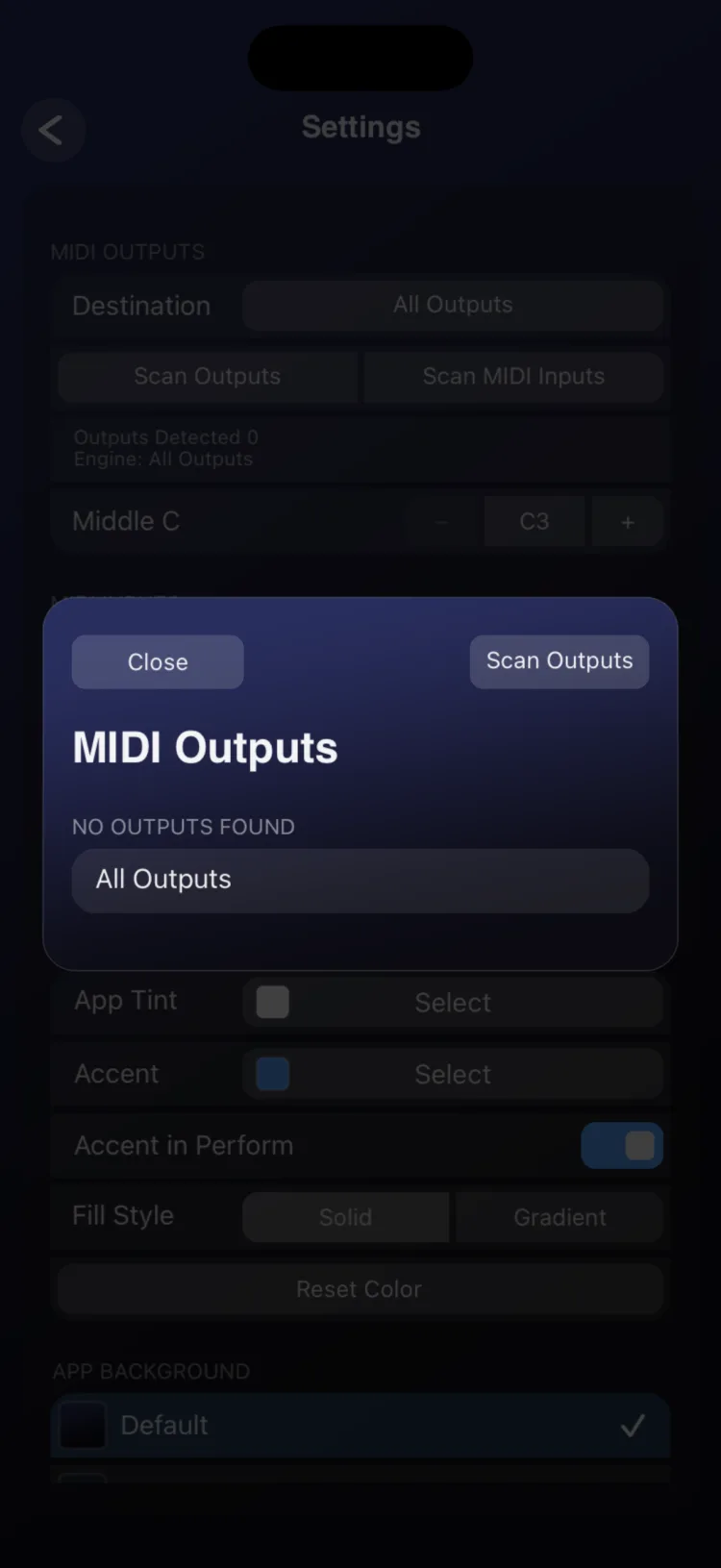
In MIDI Outputs you choose which devices or apps receive MIDI.
- Tap Destination. The list of detected destinations opens, each one tagged by its connection: [USB], [BLE] (Bluetooth) or [NET] (network).
- Check one or more destinations. MIDI goes out to all of the ones you check. You can also choose All Outputs.
- Below Destination you can see how many outputs were detected.
- If you connected a device and it doesn't show up, tap Scan Outputs to search again.
If you don't check any destination, RigAstra picks one automatically, preferring USB, then network, then Bluetooth.
Your selection is remembered by name: if a device disconnects and comes back, it reconnects on its own without cutting off notes that were sounding.
Network MIDI
[NET] destinations are the connected network MIDI sessions. On iPhone and iPad, RigAstra keeps the system's network session turned on: your device shows up on the network and, when the computer connects, the session appears in Destination. The steps are in Connect to a computer.
Notes, CCs and MIDI Clock
- Notes and CCs go out to all checked destinations.
- MIDI Clock goes out to a single destination: the first one in the Destination list among the ones you selected. If that destination disconnects, the clock automatically moves to the next selected destination that is connected, preferring cable (on iPhone and iPad, IDAM to a Mac counts too), then network, then Bluetooth. When the first one comes back, the clock returns to it. A network destination doesn't get the clock if another selected and connected destination isn't a network one.
The clock is fully explained in Tempo and clock.
MIDI inputs
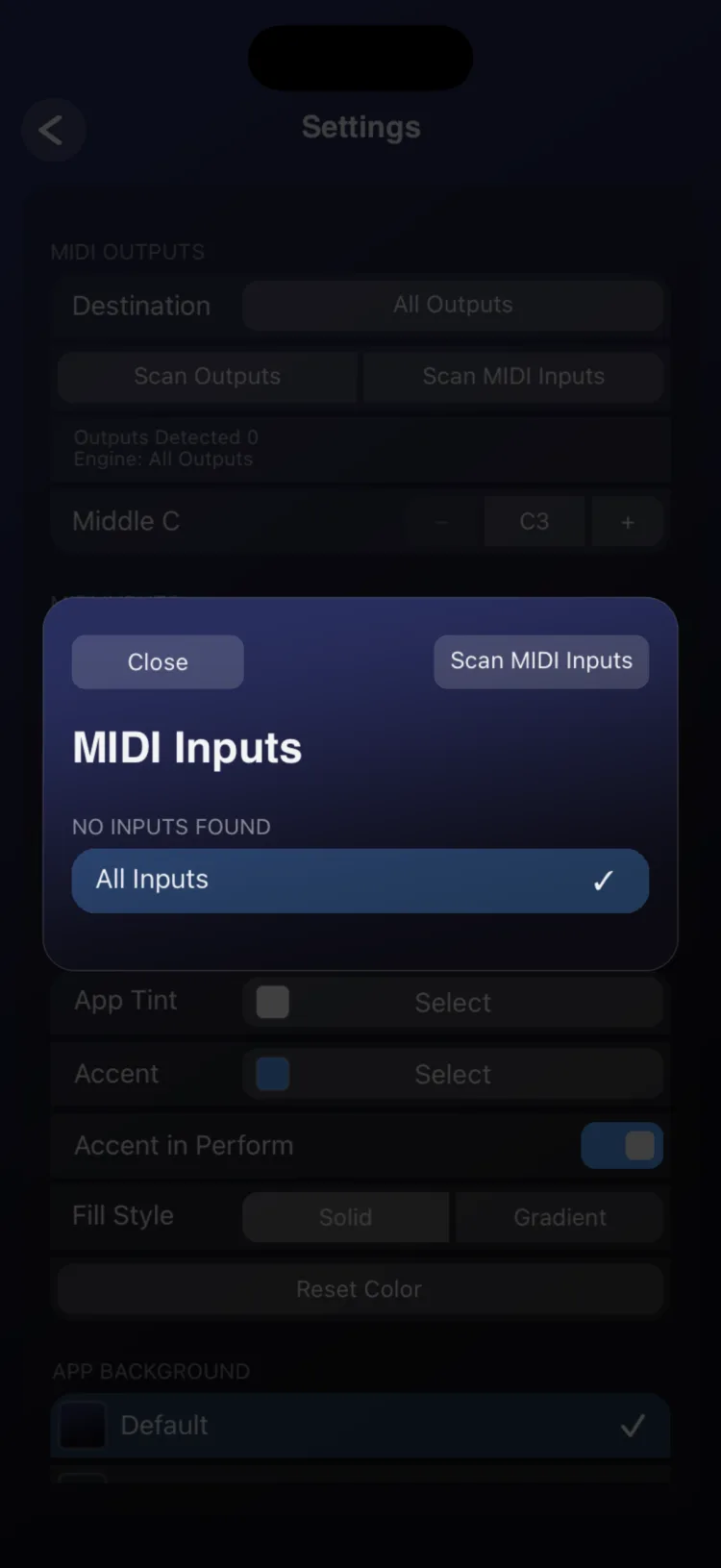
RigAstra can follow the MIDI Clock of another device, such as your DAW or a drum machine. In MIDI Inputs, tap Inputs to choose which devices the external clock is taken from:
| Option | What it does |
|---|---|
| All Inputs | The default. Listens to every input, including ones connected later. |
| Some inputs | Listens only to the ones you check. They're remembered even while disconnected and reconnect on their own when they come back. |
| None | What you get when you uncheck everything. No external device can take over the clock. |
Changes apply immediately. If an input doesn't show up, tap Scan MIDI Inputs.
If several inputs send clock at the same time, RigAstra follows the first one and ignores the others until it stops sending for 500 ms. A Stop on its own doesn't change the source.
Middle C
Middle C sets how middle C (MIDI note 60) is named throughout the app: C3, C4 or C5. The default is C3.
It only changes the names you see on pads, keyboards and chords. The notes sent stay the same. If your DAW calls note 60 C4, choose C4 so the names match.
OSC outputs
An OSC output is a named network destination: an IP address, a UDP port and a list of paths. Outputs are global: all your scenes share them.
You define each output once (for example, "Resolume" at 192.168.0.20, port 7000, with its paths) and then choose it from any Fader, Knob, XY Pad or Toggle in OSC mode.
Create an OSC output
- In Settings, under OSC Output, tap Manage OSC Outputs. The section shows how many outputs you have configured.
- Tap Add. "OSC Output N" is created with IP
127.0.0.1, port8000and the path/path, already selected. - Edit the Name (up to 32 characters), the IP (up to 64 characters) and the Port (1 to 65535).
- Under Paths, add, edit or delete paths. Each path can be up to 64 characters long.
- Tap Save. Cancel discards all changes.
You type the IP and port by hand: RigAstra doesn't search the network for devices. Use the OSC input IP and port shown by the receiving app.
Use the output on a control
In the inspector of each control in OSC mode, choose the Output and the Path. You can add a Custom Path to the end of the chosen path. All the options are in MIDI · MACRO · OSC modes.
To assign an output and a path to every Fader, Knob and XY Pad on a page at once, use the Page Inspector (see Scenes and pages). That assignment doesn't include the Toggle.
Message format
| Control | Message |
|---|---|
| Fader / Knob | One INT or FLOAT argument, scaled between the control's minimum and maximum. |
| XY Pad, Separate routes | One message per axis, each on its own path (Path X / Path Y). |
| XY Pad, Combined routes | A single message on Path X, with two arguments (X, Y). |
| Toggle | One FLOAT: the control's On value or Off value (1.0 and 0.0 by default). |
The final message address is the output's path plus the control's custom path, if it has one.

Limitations
- OSC is send-only, over UDP. RigAstra doesn't receive OSC.
- There's no automatic discovery of OSC devices.
- Each Fader, Knob or XY Pad in OSC mode sends at most 30, 45 or 60 messages per second; the last value always arrives. The Toggle doesn't have this option.
- Over the network, RigAstra sends Start and Stop, but not MIDI Clock pulses.
- The MIDI input selection is stored on the device and isn't included when you export your settings.
If something doesn't sound or respond, see Troubleshooting. The rest of the options are in Settings.