
Macro Tempo
Macro Tempo shows the scene's current tempo and gives you access to its tempo list. Choosing a tempo from the list changes the global BPM right away.
Use it to keep a set's tempos at hand (one song per tempo, or sections with different tempos) and switch them live without typing numbers. Combined with a State on the same page (or one that includes it in its custom selection), the tempo changes together with the rest.
Getting started
- In the Editor, add Tempo from the MACRO section of the palette.
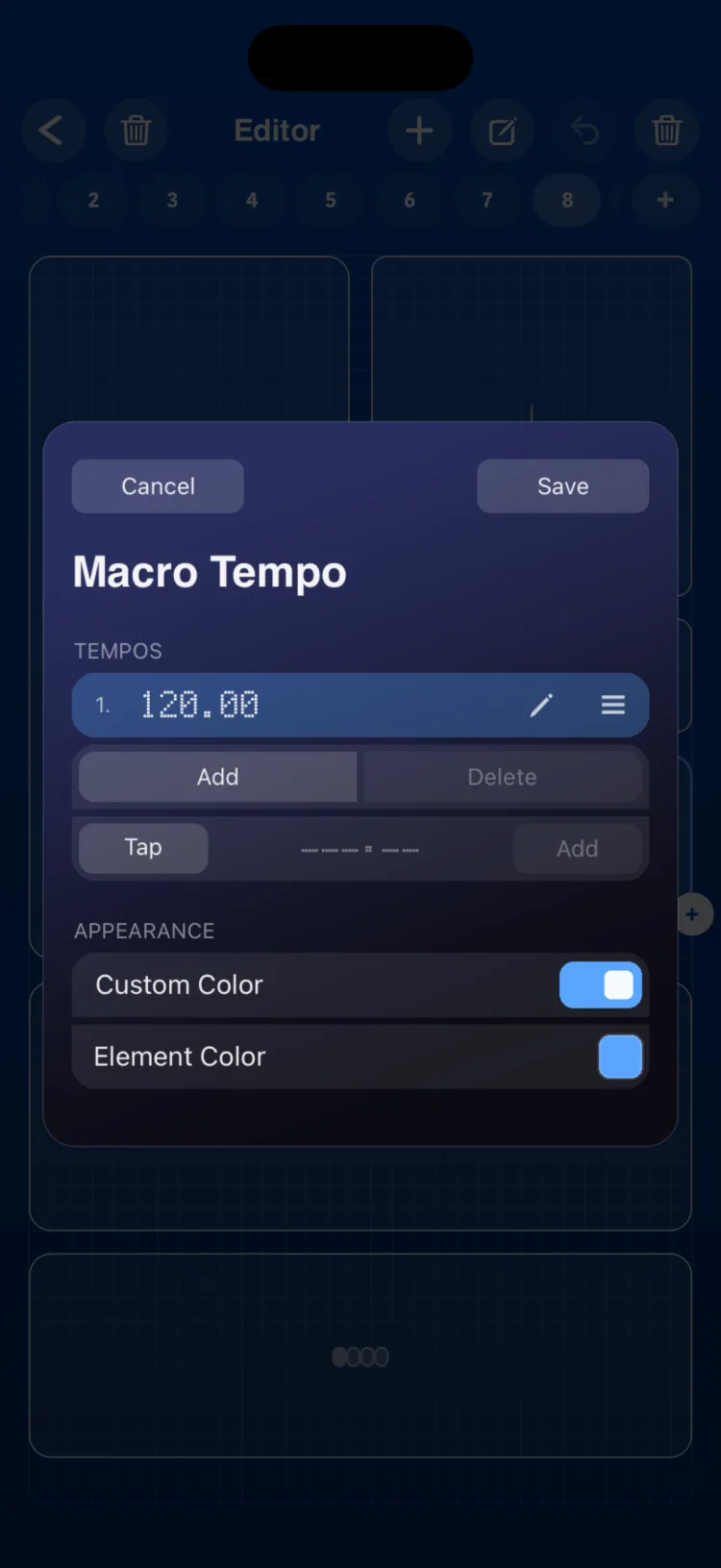
- Build the tempo list in the inspector: Add, edit and Delete. You can also use Tap and then Add to add the tapped tempo.
- In Perform, tap the module to open the Tempos list.
- Tap a tempo to select it. You can also add and edit tempos from that same list.
Inspector options
| Section | Option | Values |
|---|---|---|
| Tempos | List | up to 48 tempos, from 20 to 500 BPM, with 2 decimals |
| Tempos | Add / Delete / edit | Delete never leaves the list empty: at least one tempo always remains |
| Tempos | Tap | Averages up to 6 taps and resets after 2 s without a tap; then Add puts it in the list |
| APPEARANCE | Use Global Color / Custom Color |
Limitations
- The tempo list belongs to the scene, not to the module: two Macro Tempo modules in the same scene show the same list.
- On iPhone and iPad, the module measures (in cells, minimum / initial / maximum): iPhone 5×2 / 8×3 / 16×6; iPad 4×2 / 6×2 / 24×5.