
Editor
The Editor is where you build each page: you add controls from the palette, place and resize them on a grid, and configure them with their inspector. You can add as many faders, pads or engines as fit, in the order you need.
Build a page
- In Perform, tap the grid button on the right of the bar to enter the Editor for the current page.
- Tap + to open the Add Control palette. It has three sections, always in this order: MIDI · MACRO · OSC.
- Choose a control. It's placed in the first free space on the page at its starting size. If it doesn't fit, the palette tells you there's no free space left.
- Tap a control to select it and drag it to move it. If you pause for a moment over another control while dragging, that control shifts to make room.
- With the control selected, drag the corner handles (top left or bottom right) to resize it.
- Double-tap a control, or tap the pencil button in the bar, to open its inspector. Configure it and tap Save.
- To delete the selected control, tap the trash button on the right of the bar (the one on the left deletes the page). The undo button (the curved arrow) brings back deleted controls.
- Go back to Perform with the back arrow.
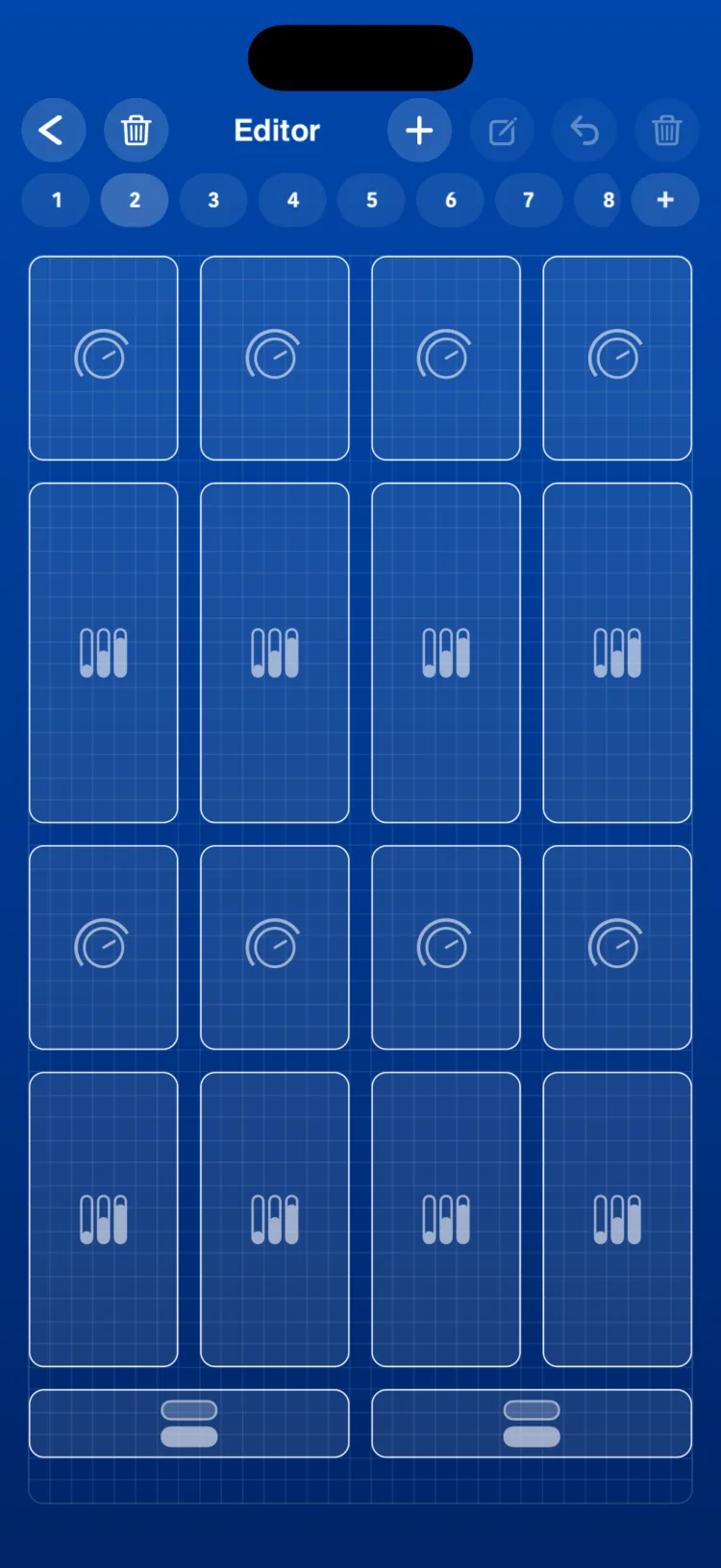
The palette
| Section | Controls |
|---|---|
| MIDI | Fader, Horizontal Fader, Knob, XY Pad, Pitch (Pitch Bend), Pad, Drone Pad, Arpeggiator, Drum Player, Keyboard and Toggle |
| MACRO | Fader, Horizontal Fader, Knob, Macro State (State), Macro (Macro Play), Tempo (Macro Tempo), LFO, Macro Mem (Macro Memories) and Toggle |
| OSC | Fader, Horizontal Fader, Knob, XY Pad and Toggle |
The section you pick a control from sets its starting mode. On the Fader, Knob and Toggle you can change it later in the inspector (see MIDI · MACRO · OSC modes).
On iPad, the palette stays open when you add a control and you can drag it; it remembers its position while you stay in the Editor. It hides when you open an inspector and comes back when you close it.

Automatic channel, CC and note assignment
When you add a control, RigAstra assigns values so you don't have to set it up from scratch:
- Channel: the channel set for the page in the Page Inspector or, if there isn't one, the last channel used on the page (1 by default).
- CC: MIDI faders and knobs get the next free CC on that channel (CC 1 the first time). The XY Pad gets two consecutive free CCs.
- Note: pads get the next free note on the channel, never below note 24.
- Color: the color set for the page, if there is one.
- OSC: OSC controls start with the first OSC output and its first path. The XY Pad uses the second path for the Y axis, if the output has one.
"Free" is worked out across all your scenes: RigAstra remembers which CCs and notes are already assigned on each channel, so controls in different scenes don't accidentally clash.
The grid
Each scene stores one grid per screen format. On iPhone and iPad the sizes are:
| Format | Columns × rows |
|---|---|
| iPhone portrait | 16 × 28 |
| iPhone landscape | 24 × 10 |
| iPad portrait | 24 × 36 |
| iPad landscape | 32 × 24 |
- Controls can't overlap or go outside the grid.
- On iPad, each page stores one layout for portrait and another for landscape.
- A control created with a newer version of RigAstra shows up as a locked gray marker with the notice "Requires a newer version of RigAstra". It can't be played, moved or edited, and its cells count as occupied. Update the app to use it.
Auto-Layout
If a control ends up outside the current grid (for example, on a page made in another format or on another device), the Auto-Layout button appears. When you use it, RigAstra rearranges the controls row by row and adjusts their sizes within each type's minimum and maximum.
Sizes by control type
Each control type has a minimum, a starting and a maximum size, measured in cells (columns × rows). On iPhone and iPad:
| Control | iPhone (min / start / max) | iPad (min / start / max) |
|---|---|---|
| Vertical fader | 2×4 / 3×7 / 8×20 | 1×4 / 2×5 / 12×24 |
| Horizontal fader | 5×2 / 8×3 / 16×9 | 3×2 / 6×2 / 24×12 |
| Knob | 3×4 / 4×5 / 8×14 | 2×3 / 2×4 / 12×18 |
| XY Pad | 4×4 / 6×6 / 16×16 | 2×3 / 4×5 / 12×18 |
| Pad | 3×3 / 4×4 / 16×14 | 2×3 / 3×4 / 12×18 |
| State | 5×2 / 6×2 / 8×4 | 3×2 / 4×2 / 12×9 |
| Pitch Bend | 2×4 / 3×7 / 8×20 | 1×4 / 2×5 / 12×24 |
| Keyboard | 8×4 / 14×6 / 16×12 | 8×6 / 12×8 / 32×12 |
| Arpeggiator | 16×10 / 16×11 / 16×20 | 9×8 / 12×9 / 32×18 |
| Drone Pad | 14×8 / 14×9 / 16×14 | 8×7 / 8×7 / 12×14 |
| Drum Player | 16×15 / 16×16 / 16×20 | 9×12 / 12×12 / 24×14 |
| LFO | 8×16, fixed | 8×16, fixed |
| Macro Play | 10×6 / 14×8 / 16×22 | 6×5 / 8×8 / 24×34 |
| Macro Tempo | 5×2 / 8×3 / 16×6 | 4×2 / 6×2 / 24×5 |
| Macro Memories | 10×5 / 14×5 / 16×5 | 6×3 / 8×4 / 24×4 |
| Toggle | 4×2 / 6×2 / 16×6 | 3×1 / 4×2 / 12×9 |
Copy and paste settings
Most inspectors have a CLIPBOARD section with COPY and PASTE. Copy one control's settings and paste them into another control of the same type; the position isn't copied. What you copy is kept while the app stays open.
Page backgrounds and defaults
Each page's background, and the default channel and color for its controls, are chosen in the Page Inspector (see Scenes and pages). Pages are added, reordered and deleted in the Editor, with the page indicator and the trash button on the left.
Limitations
- Undo only brings back deleted controls, up to 25 per page. Deleting a page can't be undone.
- New controls always go into the first free space. If the page is full, make room before adding another.
- The LFO has a fixed size (8×16) and can't be resized.