
MIDI · MACRO · OSC modes
Continuous controls and the Toggle can work in three modes. The mode decides where what you play goes.
| Mode | Sends to | Controls that have it |
|---|---|---|
| MIDI | A MIDI device or app (channel + CC or note) | Fader, Horizontal Fader, Knob, XY Pad and Toggle. Also the Pad, the Keyboard, the Pitch Bend, the Arpeggiator, the Drum Player and the Drone Pad, which are MIDI only. |
| MACRO | Other controls in the same scene | Fader, Horizontal Fader, Knob and Toggle. Also State, Macro Play, Macro Tempo, Macro Memories and LFO, which are MACRO only. |
| OSC | An app or device on the network (IP:port + path) | Fader, Horizontal Fader, Knob, XY Pad and Toggle. |
The MIDI · MACRO · OSC order is the same in the Editor's palette and in the MODE selector of every inspector.
What each mode is for
- MIDI: synths, DAWs, drum machines and virtual instruments.
- MACRO: one gesture that moves several controls at once, each within its own range. For example, opening a filter and lowering the reverb with the same fader.
- OSC: video and visuals software, digital mixers, environments such as TouchDesigner, Max or Resolume, or any OSC receiver.
Choose the mode
- Add the control from the palette section you want, or change its MODE later in the inspector.
- Set up the mode's details in the inspector.
- Tap Save.
MIDI mode
| Option | Values |
|---|---|
| Channel | 1–16 |
| CC | 0–127 (Fader, Knob and Toggle) |
| CC X / CC Y | 0–127 each (XY Pad) |
| BEHAVIOR (Fader and Knob) | Pickup: moves the value relative to where it is. Jump: takes the value straight to the point you touch. |
Faders and knobs send 7-bit CCs (0–127).
MACRO mode
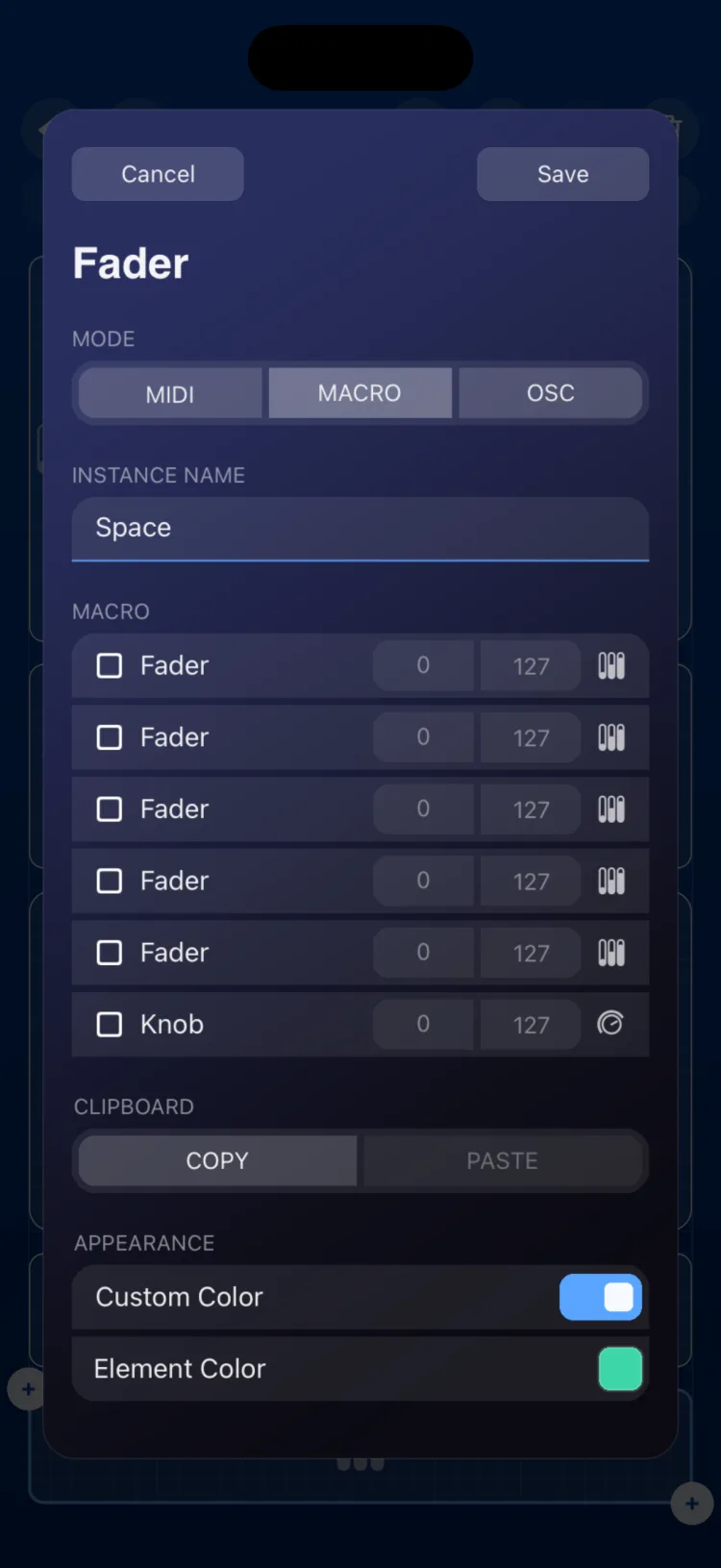
In MACRO mode, the control doesn't send MIDI or OSC itself: it moves other controls, and each of them sends its own MIDI or OSC.
- Targets: you can choose any Fader or Knob in the scene that isn't in MACRO mode, and any XY Pad (by X axis and Y axis). Targets can be on any page.
- From and To: each target has the value it receives when the macro is at its minimum and when it's at its maximum. They're shown in the target's scale: 0–127 for MIDI targets, or the target's OSC minimum and maximum. You can invert the movement by setting From higher than To.
- When you move the macro, each target moves within its range.
You can also choose the targets and their ranges live, by touching and holding the macro's button in Perform (see Perform).
A Fader or Knob in MACRO mode can be the target of an LFO: that way the LFO moves all of the macro's targets at once.
The Toggle in MACRO mode has additional targets; see Toggle. The full step-by-step guide, including live assignment, is in Fader, Knob and Toggle in Macro mode.
OSC mode
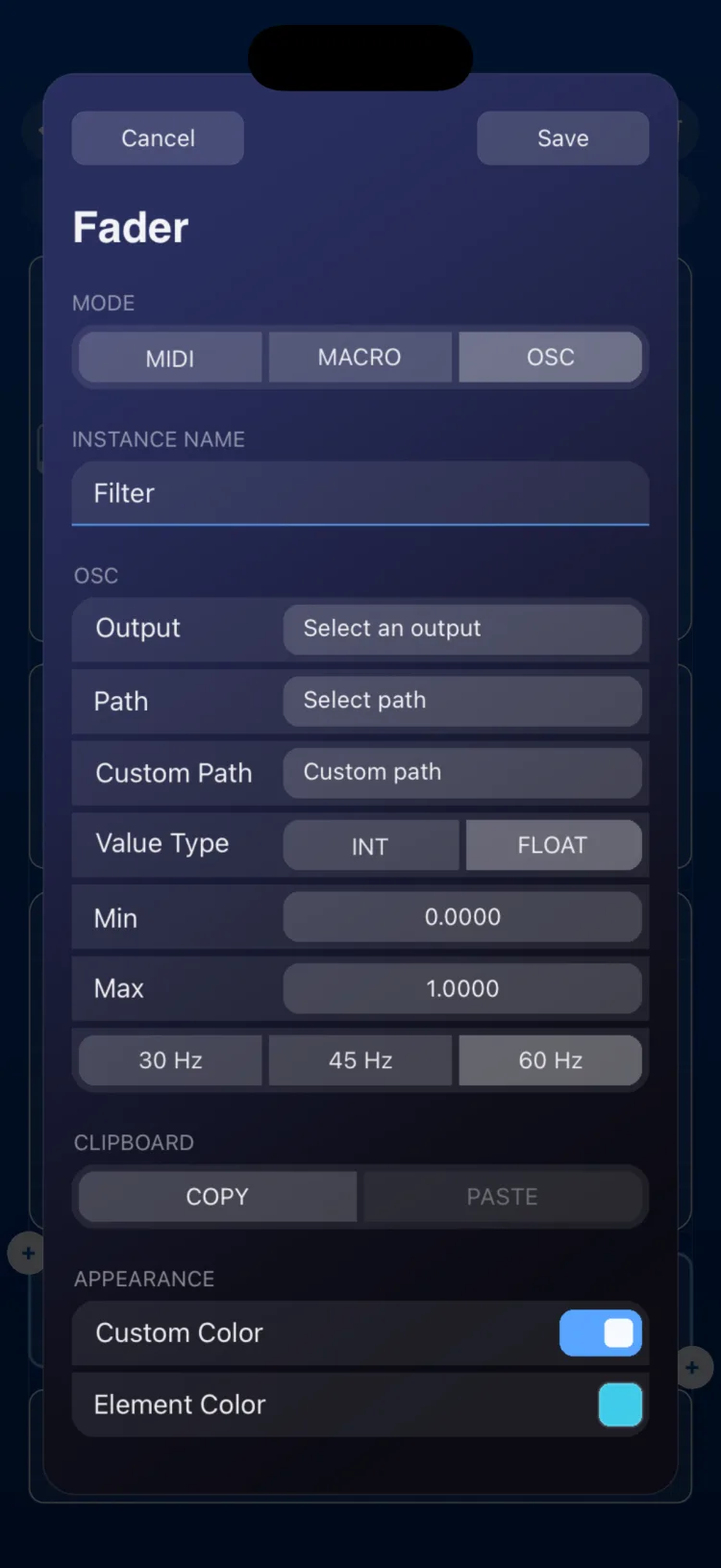
| Option | Values |
|---|---|
| Output | One of the OSC outputs defined in Settings (see MIDI and OSC connections). |
| Path | One of that output's paths. |
| Custom Path | Text added to the end of the chosen path (/output/path + /custom). If the output has no path, only the custom path is used. |
| Value Type | INT or FLOAT. |
| Min / Max | The range that's sent. Any number works; the minimum must be less than the maximum. |
| Send rate | 30 Hz, 45 Hz or 60 Hz. Limits how many messages per second are sent while you move the control. The last value always arrives. The Toggle doesn't have this option. |
The message format for each control is in MIDI and OSC connections.
Limitations
- MACRO mode always works across the whole scene (all pages).
- A control in MACRO mode can't be the target of another macro. It can be the target of a State and, if it's a Fader or a Knob, of an LFO.
- The XY Pad has no MACRO mode. The Pad, the Keyboard and the Pitch Bend have neither OSC nor MACRO mode.
- OSC is send-only: RigAstra doesn't receive OSC.
- Controls send 7-bit CCs with a linear response. There's no 14-bit NRPN, MCU or HUI mapping, and no configurable response curves.