
Fader, Knob and Toggle in Macro mode
The Fader, the Knob and the Toggle have a Macro version. Instead of sending MIDI or OSC, they move other controls in the scene, and each of those sends its own. With a single gesture you change several things at once, each within its own range.
- Macro Fader and Knob: one continuous movement. For example, a fader that opens the filter, raises the reverb and lowers the volume of another synth at the same time.
- Macro Toggle: two complete states, Off and On. For example, a "chorus mode" that raises the reverb, opens a filter, turns on a pad and changes the chord of the Drone Pad with one tap.
Adding a Macro control
- Open the Editor and tap + to open the palette.
- In the MACRO section, tap Fader, Horizontal Fader, Knob or Toggle.
- Double-tap the control to open its inspector and choose its targets.
You can also convert a control you already have: in its inspector, change the MODE to MACRO. Once it's in Macro mode, the control stops sending its own MIDI or OSC.
Choosing the targets of a Fader or Knob
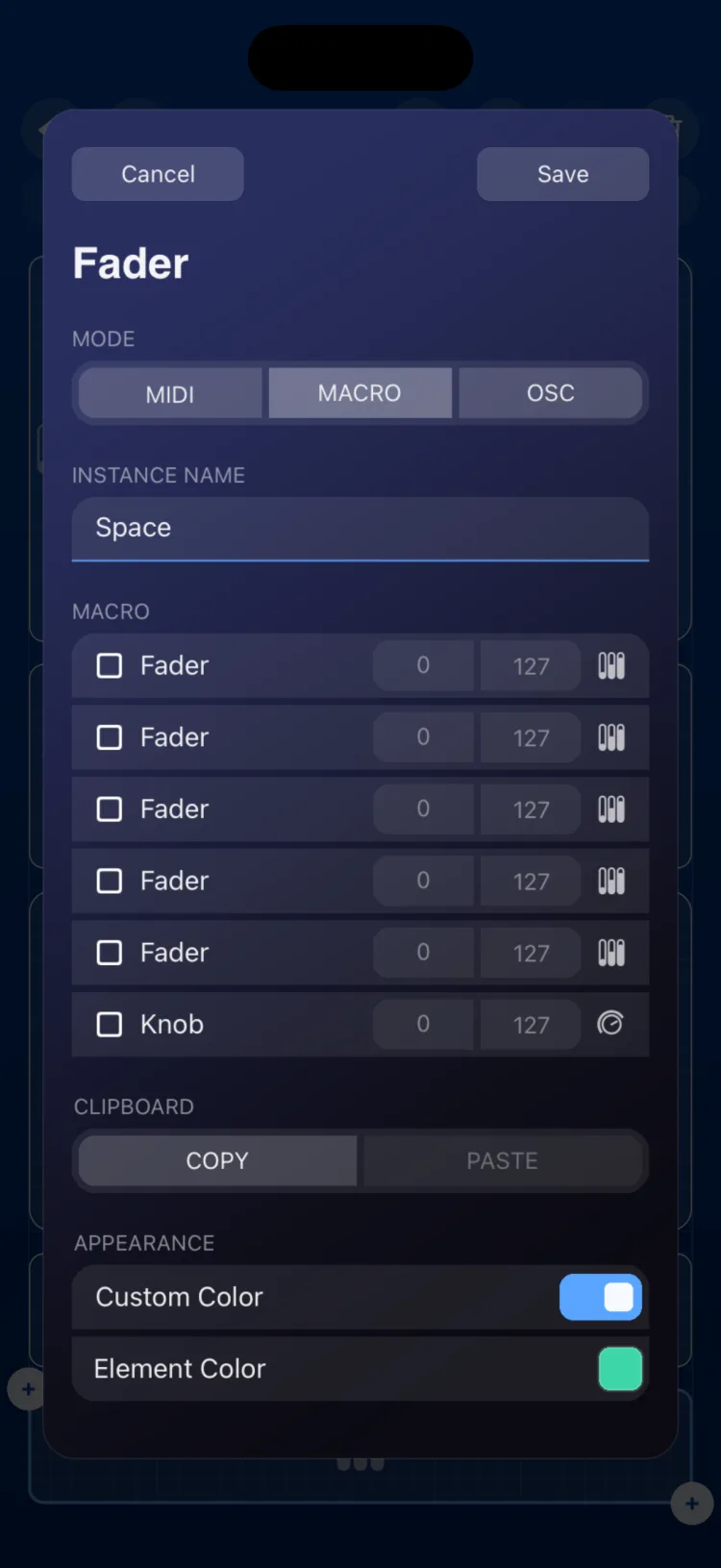
In the inspector, the MACRO section lists the controls the macro can move:
- Every Fader and Knob in the scene that isn't in Macro mode.
- XY Pads, with one row for the X axis and another for the Y axis.
The list includes controls from every page of the scene. To make them easy to find, give each control a recognizable Instance Name.
- Tap a row to check it as a target. When you check it, the target sweeps its full range.
- Tap the From value to choose where that target sits when the macro is at its minimum, and the To value for when it's at its maximum.
- Tap Save.
To remove a target, tap its row to uncheck it.
- Values are entered in the target's scale: 0–127 if the target is MIDI, or between the target's OSC minimum and maximum.
- If you set From higher than To, the target moves the other way: it goes down as you raise the macro.
- There's no limit to the number of targets.
Choosing targets live
In Perform you can build the macro by hand, moving the targets to where you want them to end up. Touch and hold the button with the name at the bottom of the Macro Fader or Knob. The button and its page pill change color at each step:
- Red, choose targets: tap the controls you want to move. You can switch pages to choose controls on other pages. When you're done, go back to the macro's page and tap its button.
- Blue, From value: the macro goes to its minimum. Leave each target at the value it should have at that end and tap the button.
- Green, To value: the macro goes to its maximum. Leave each target at its other end and tap the button to save.
When you save, the target list ends up exactly as you chose it in step 1: any previous targets you didn't check are removed. If you confirm step 1 without any target checked, nothing changes.
Playing a Macro Fader or Knob
- Drag the macro like any fader or knob. It shows its value from 0 to 127.
- Each target moves within its range and sends its own MIDI or OSC, with its own channel, CC and mapping.
- Targets on the page you're viewing move on screen. Those on other pages change too, and you'll see them in their new position when you go to that page.
- The macro doesn't send anything by itself. If it has no targets, it moves on screen without sending anything.
The link only goes one way: if you move a target by hand, the macro doesn't change. The next time you move the macro, the target jumps to its corresponding value.
Double Tap still works on the Macro Knob (Go to Zero or Go to Center).
Macro Toggle
In Macro mode, the Toggle stores two states of your surface, one for Off and one for On. When you tap it, all its targets move together from one state to the other.
In the inspector, the Targets section shows what the Toggle can change, from every page of the scene:
| Target | What you set |
|---|---|
| Fader or Knob (not Macro) | Value at Off and value at On (0–127, or the target's OSC range) |
| XY Pad | Values at Off and at On for each axis, X and Y |
| Toggle (not Macro) | State at Off and at On (tap the value to change it) |
| Pad in Toggle mode | State at Off and at On |
| Drone Pad | Mute, active root notes and selected chord at Off and at On |
- Check the targets. When you check a Fader, Knob or XY Pad, it's set to its minimum at Off and its maximum at On.
- Tap each target's Off and On values to adjust them.
- Choose the Duration and tap Save.
- Duration: from 0 to 5 seconds, in 0.1 steps. At 0 (Instant) the change is immediate. With a higher value, Faders, Knobs and XY Pads glide to their new value over that time, sending MIDI or OSC as they move. Toggles, Pads and Drone Pads change instantly.
- BEHAVIOR: with Toggle, each tap switches between Off and On. With Momentary, the targets are On only while you hold it down.
Drone Pad notes aren't entered in the inspector: they're stored through live assignment.
Assigning a Macro Toggle live
Touch and hold the Macro Toggle. It shows an indicator with the step you're on:
- Red (+), choose targets: tap the controls you want to change, on any page, then tap the Toggle.
- Blue (<), Off state: set the targets the way they should be at Off (fader and knob values, Toggles on or off, Drone Pad notes) and tap the Toggle.
- Green (>), On state: set the targets the way they should be at On and tap the Toggle to save.
On the Toggle, whatever you capture is added to the targets it already had. To remove one, uncheck it in the inspector. When you finish, the Toggle is left at Off.
With other modules
- LFO: an LFO can move a Macro Fader or Knob. That way a single wave moves all of the macro's targets at once, each within its range.
- State: a State can recall the value of a Macro Fader or Knob. When it does, the macro moves its targets.
- Macro Memories stores the engines' memories (Drum Player, Arpeggiator, Drone Pad), not the value of macros. See Macro Memories.
- A control in Macro mode can't be the target of another macro: a Macro Fader or Knob can't be targeted by another macro, and a Macro Toggle can't be targeted by another Macro Toggle.
Limits
- Macros work across the whole scene: their targets can be on any page, but not in another scene.
- The XY Pad has no Macro version, though it can be the target of a macro.
- The Pad, the Keyboard, the Pitch Bend and the engines can't be targets of a Macro Fader or Knob. Only Pads in Toggle mode can be targets of a Macro Toggle.
- In the inspector list, two controls with the same name look identical: give them different names.
- More on the three modes in MIDI · MACRO · OSC modes.