
Introduction
RigAstra turns your phone or tablet into a MIDI and OSC control surface that you design yourself. It runs on iPhone, iPad, and Android phones and tablets. RigAstra doesn't make sound: it sends MIDI to your synths, drum machines, virtual instruments or DAW, and OSC over the network to video software, digital mixers or any OSC receiver.
Instead of adapting to a controller with a fixed number of knobs, you build your own pages with the controls you need, in the order and size you prefer, and play them live.
Scenes, pages and controls
Everything in RigAstra is organized in three levels:
| Level | What it is |
|---|---|
| Scene | The main container: a song, a set or a studio setup. Each scene has its own pages, its own grid and its own tempo list. |
| Page | A screen inside the scene, with its own grid of controls, its own background and its own default channel and color. A scene can have up to 48 pages. |
| Control | Each element you place on a page: faders, knobs, pads, keyboards, engines, macros. |
A practical way to work is one scene per song, using pages to separate sections (intro, verse, chorus) or instruments. This is covered in detail in Scenes and pages.

The three modes: MIDI, MACRO and OSC
Controls are grouped by where what you play goes:
| Mode | Sends to |
|---|---|
| MIDI | A MIDI device or app, using a channel and a CC or note number. |
| MACRO | Other controls in the same scene: one gesture moves several controls at once, each within its own range. |
| OSC | An app or device on the network, using an IP address, a port and a path. |
The Fader, the Knob and the Toggle can work in all three modes; the XY Pad works in MIDI and OSC. Other controls have a single mode: the Pad, the Keyboard, the Pitch Bend, the Arpeggiator, the Drum Player and the Drone Pad are MIDI only, and the LFO and the macro modules are MACRO only. See MIDI · MACRO · OSC modes.
RigAstra's screens
| Screen | What it's for |
|---|---|
| Scene list | The start screen. It shows your scenes from most recent to oldest. From here you create, open and manage scenes, and open Settings with the gear and this help with the ? button. |
| Perform | The screen where you play. When you open a scene you go straight here, to the last page you used. |
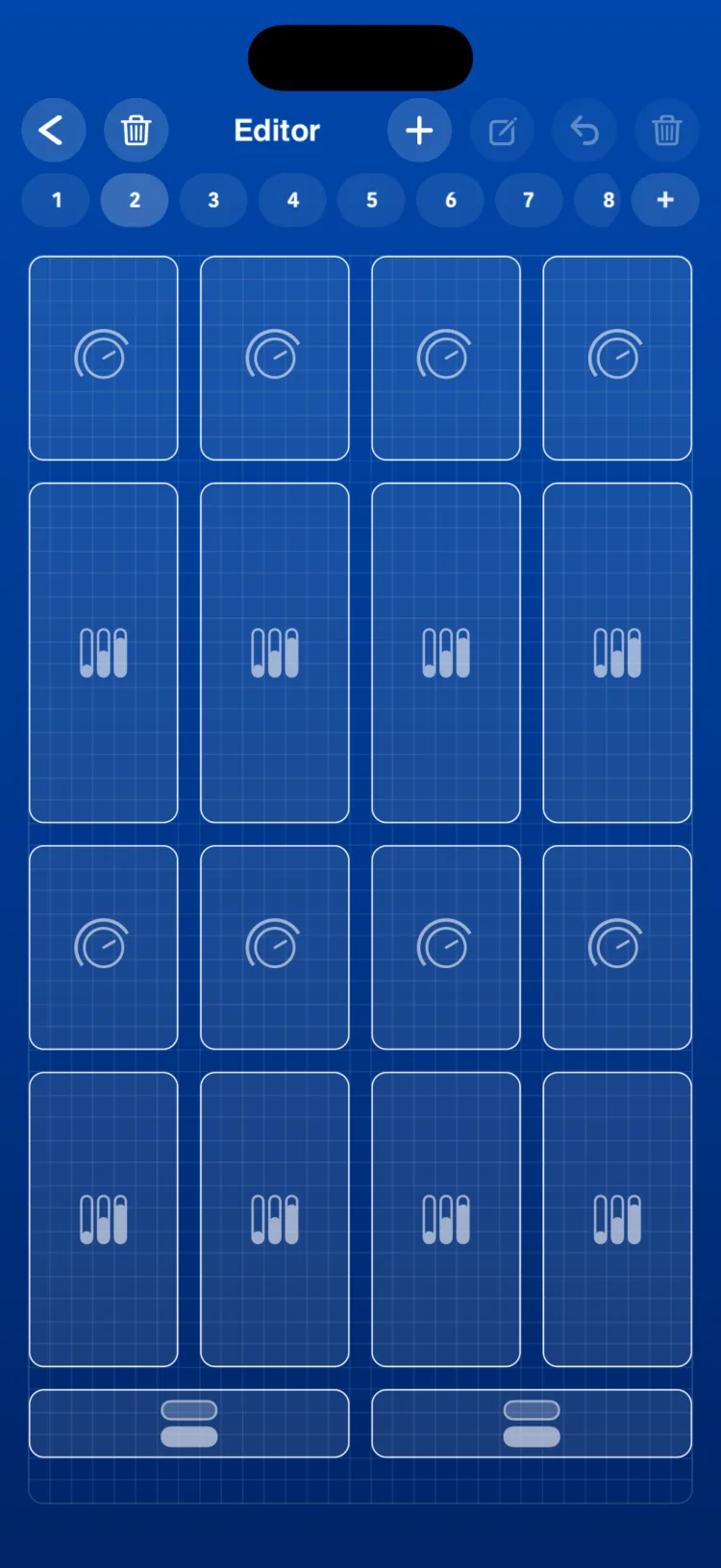
| Editor | Where you build each page: you add controls from the palette, place them on the grid and configure them. |
Settings holds everything that is global to the app: MIDI outputs and inputs, OSC outputs, how middle C is named, the app's color and background, and backups.
Engines and macros
Besides the controls you move with your finger, RigAstra includes engines that play on their own, all locked to the same clock: the Arpeggiator, the Drum Player, the Drone Pad and the LFO.
Macros control other controls: a State recalls saved values with one tap, Macro Tempo changes the scene's tempo, Macro Memories switches the memory of several engines at once, and Macro Play runs several engines from a single module.
Before you start
- RigAstra doesn't produce audio. You need a device or an app that receives MIDI or OSC.
- OSC is send-only: RigAstra sends OSC messages but doesn't receive them.
- RigAstra keeps playing in the background: if engines are running when you switch to another app, they keep sounding. If nothing is playing, it turns off all notes as a safety measure and the system can suspend it.
Documentation map
Start here
- Getting started: a first session with the Quick Start scene and your first control.
- MIDI and OSC connections: MIDI outputs and inputs, and OSC outputs.
Build your rig
Controls
Engines
Macros
Live, settings and files
If this is your first time, continue with Getting started.