
MIDI Notes
Each drum sends a MIDI note. You can change which one, drum by drum, to match the sounds of your virtual instrument or drum module.
Each of the three layouts has its own note map. Changing a note in layout 1 doesn't affect layouts 2 and 3, even if the drums look alike. More about layouts in Drums and layouts.
Enter mapping mode
- Tap Settings (the gear button in the left column) to open MIDI Settings.
- Tap MAP MIDI NOTES.
The panel shrinks to a bar at the bottom and, on each drum of the current layout, two things appear:
- A round play button, to test the note.
- A label with the note name (for example, C2), to change it.
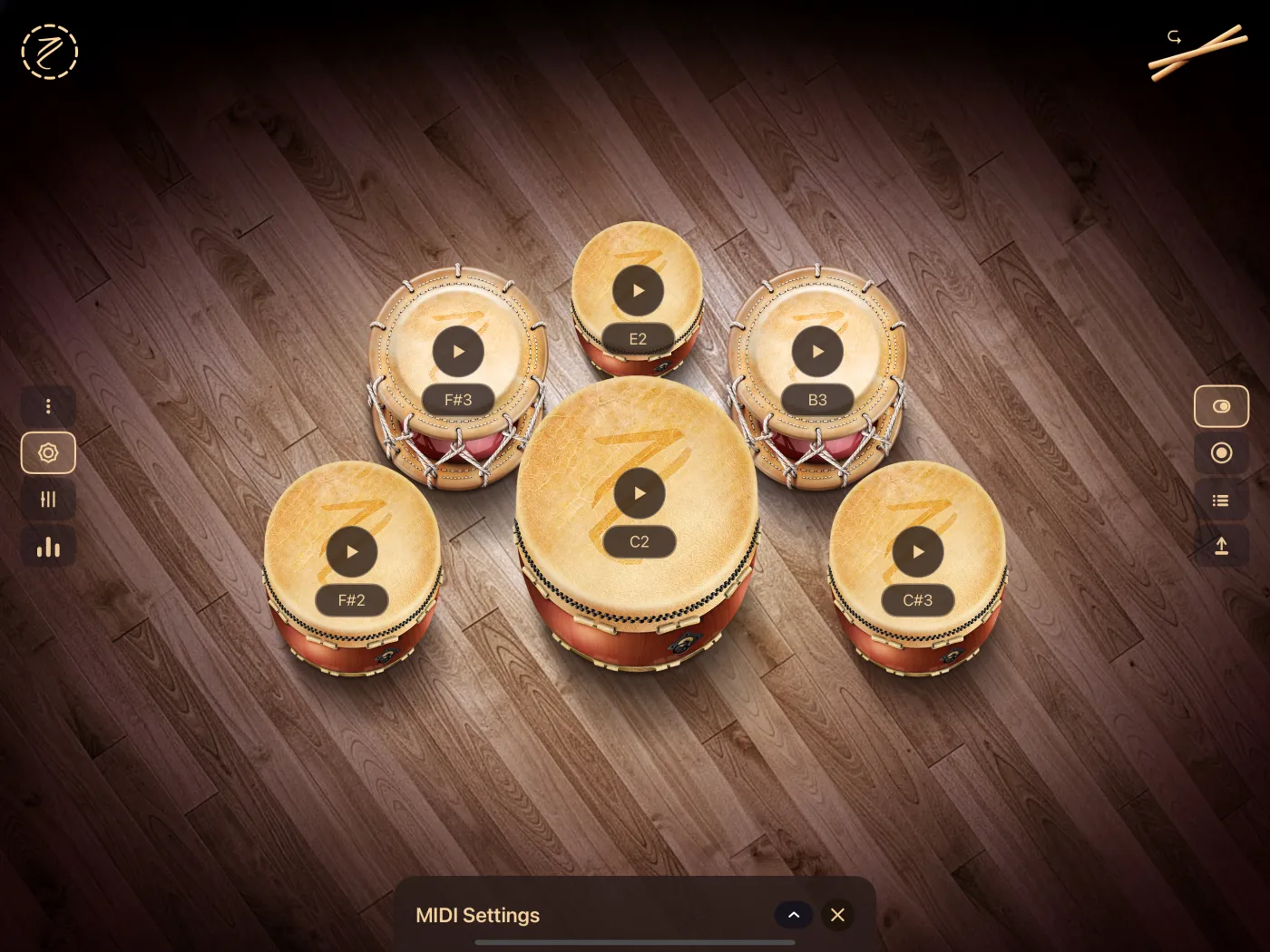
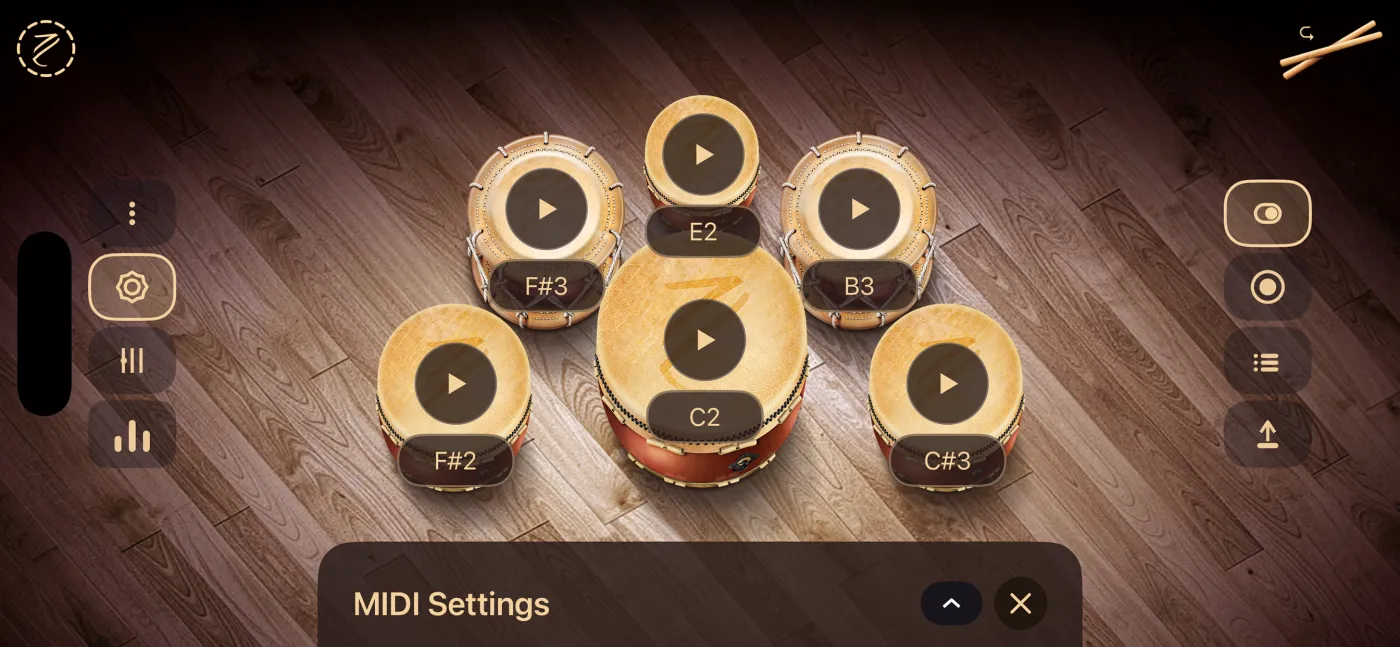
You only see the notes of the layout on screen. To map another layout, close the settings, choose that layout (opening the layout selector closes the settings by itself) and tap MAP MIDI NOTES again.
Change a drum's note
- Tap the note label on the drum.
- A wheel opens with every MIDI note, from C-1 (0) to G9 (127). High notes are at the top and low notes at the bottom.
- Spin the wheel to the note you want. If you have a MIDI destination selected, your instrument plays each note the wheel passes over.
- Tap outside the wheel to confirm.
The wheel has no OK or Cancel button: tapping outside applies the note in the center. If you opened the wheel by mistake, leave it on the note it had and tap outside.
Test a note
Tap the play button on a drum. Its note is sent over MIDI, just like a hit (velocity 100), but the app doesn't play its own sound or animate the drum. That way you can check what your instrument plays without the app's sound on top.
To hear anything, you need a destination selected in MIDI Out.
Leave mapping mode
- Tap the up arrow on the MIDI Settings bar to open the full panel again, or
- tap × to close the settings.
Either way, the labels on the drums go away. While mapping, you can keep playing the drums anywhere the play button and label don't cover.
Your changes are saved
Every note you choose is saved right away, per layout. The next time you open the app, the drums send the notes you chose.
There is no button to go back to the factory notes. To restore a drum, choose its original note on the wheel (they're in the tables below).
The app's sound doesn't change
The note map only affects the MIDI that goes out. Each drum's internal sound stays the same, whatever note you choose.
Default notes
The default notes follow the General MIDI drum map, meant for channel 10.
Layout 1 (8 drums)
| Note | Number | General MIDI sound |
|---|---|---|
| F#2 | 42 | Closed hi-hat |
| A#2 | 46 | Open hi-hat |
| E2 | 40 | Snare (electric snare) |
| A2 | 45 | Low tom |
| G2 | 43 | High floor tom |
| F2 | 41 | Low floor tom |
| C#3 | 49 | Crash 1 |
| C2 | 36 | Bass drum |
Layout 2 (3 drums)
| Note | Number | General MIDI sound |
|---|---|---|
| F3 | 53 | Ride bell |
| G3 | 55 | Splash |
| A3 | 57 | Crash 2 |
Layout 3 (6 drums)
| Note | Number | General MIDI sound |
|---|---|---|
| F#2 | 42 | Closed hi-hat |
| E2 | 40 | Snare (electric snare) |
| C#3 | 49 | Crash 1 |
| C2 | 36 | Bass drum |
| F#3 | 54 | Tambourine |
| B3 | 59 | Ride 2 |
Each label shows its drum's note, so in mapping mode you can see on screen which one belongs to each drum.
Note names
Taiko Drums uses the convention where note 60 is C4 (middle C) and note 0 is C-1. Some apps call note 60 C3: in that case you'll see names one octave lower, but the note number is the same.