
Drums and layouts
Taiko Drums has two kinds of drums and three layouts, or diagrams, that arrange them in different ways.
The two kinds of drums
- Miya-daiko: barrel drums with a deep, long sound.
- Shime-daiko: smaller drums tightened with ropes, with a short, dry sound.
Each drum has its own sound. In all, the app has 8 miya-daiko sounds and 3 shime-daiko sounds, and each one also has its flam version (see Flam).
The 3 layouts
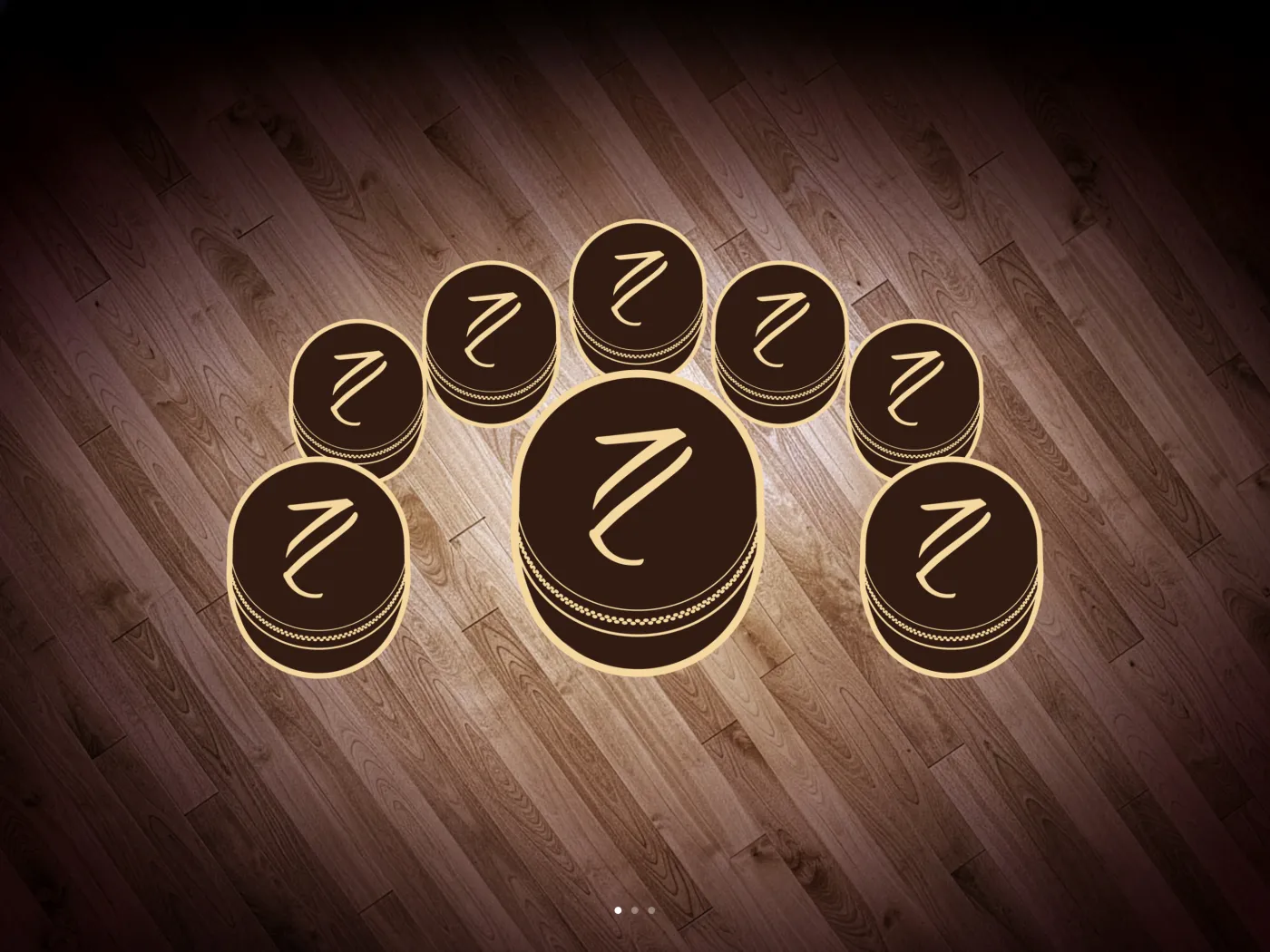
Layout 1: miya-daiko
8 barrel drums: a large drum in the center, one drum on each side at the front, and 5 smaller drums in an arc behind them. Each of the 8 drums sounds different.
This is the layout the app uses the first time you open it.
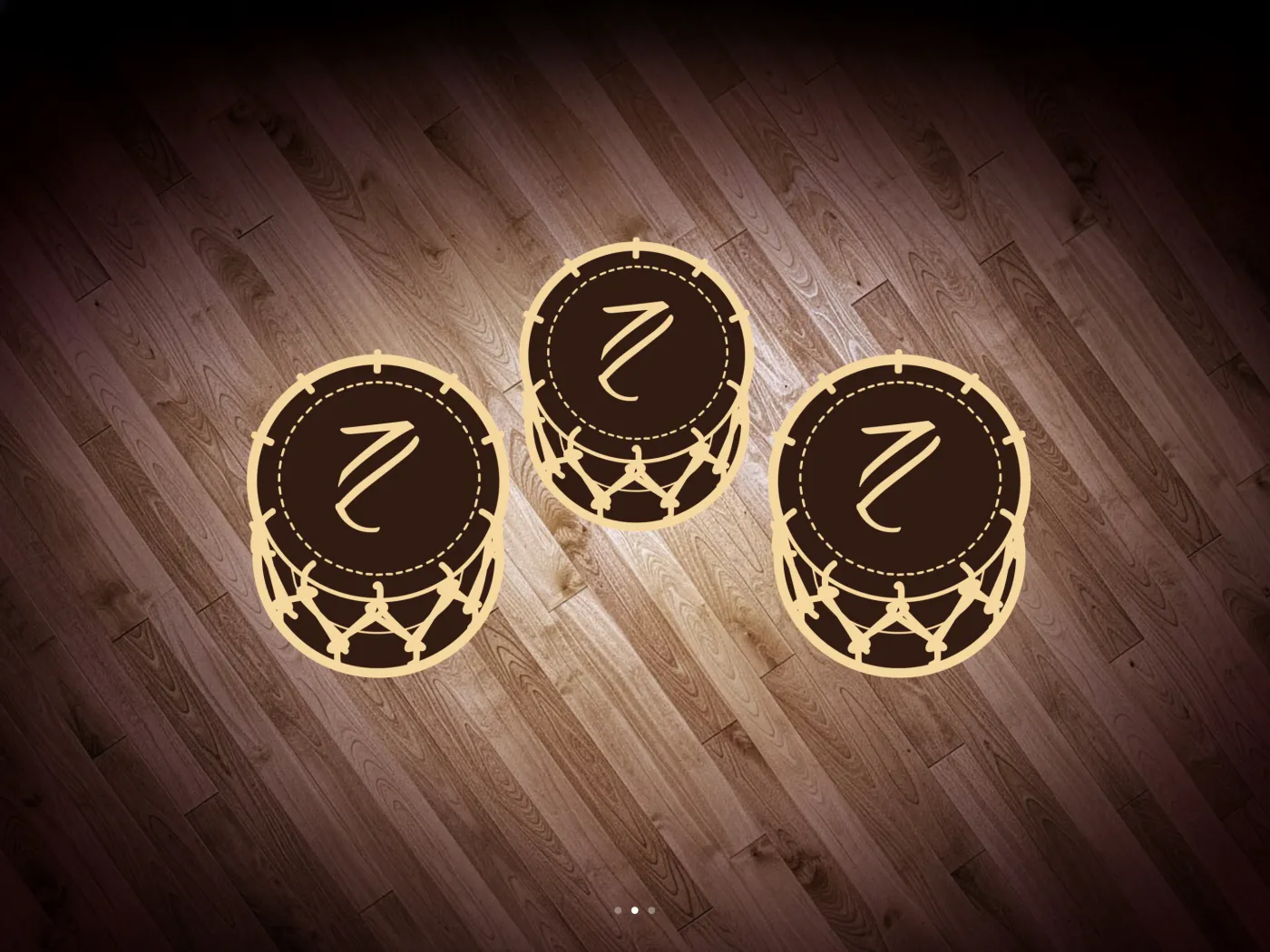
Layout 2: shime-daiko
3 rope drums: one on the left, one in the center at the back, and one on the right. Each one sounds different.
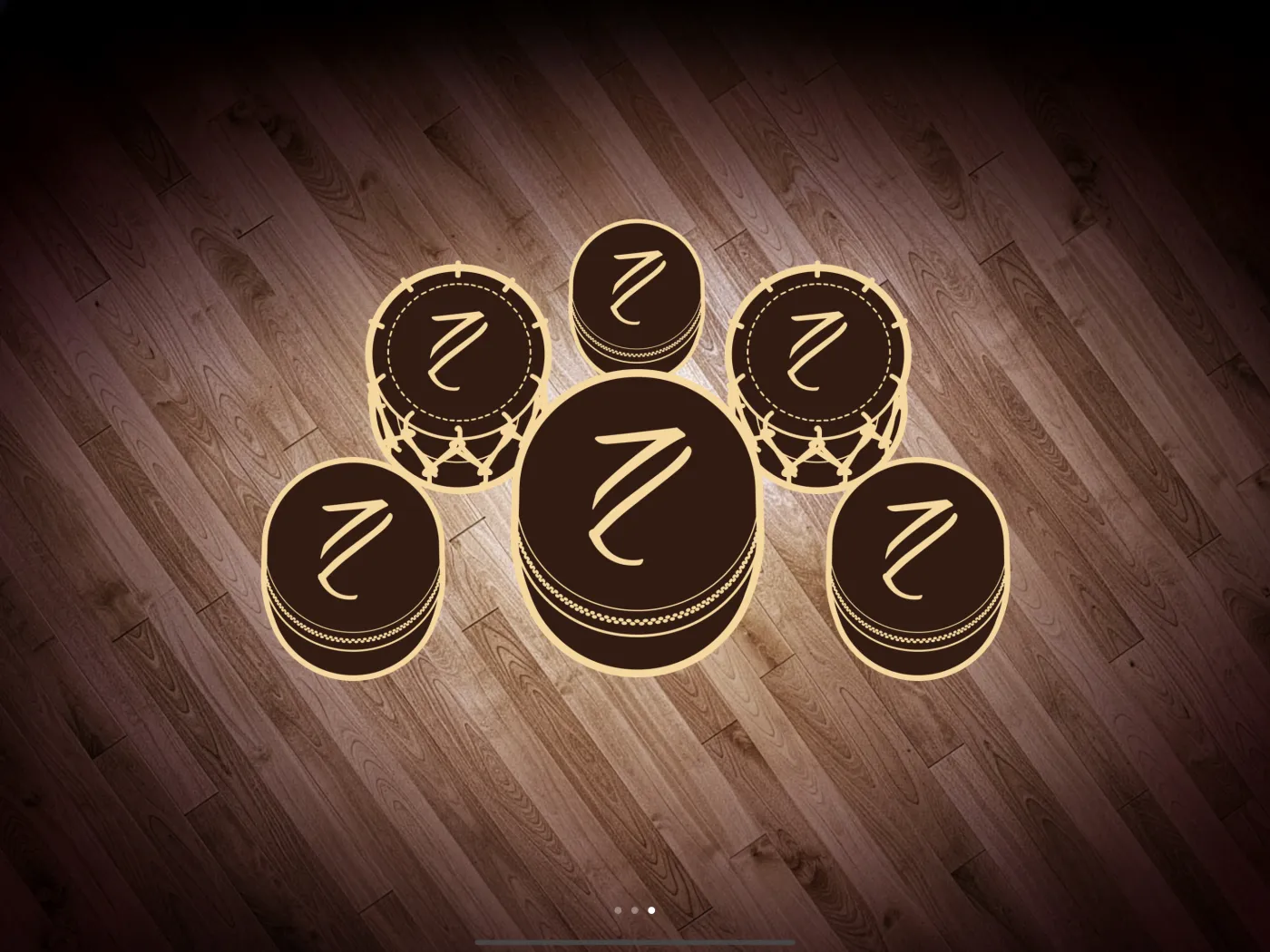
Layout 3: mix
6 drums: 4 miya-daiko and 2 shime-daiko.
- The large drum in the center, the front left drum, the front right drum and the small drum at the top center are miya-daiko. They sound the same as the drums in those positions in layout 1.
- The two shime-daiko, at the left and right behind, sound the same as the left and right drums in layout 2.
Changing the layout
- Tap the layout selector, the round button with the logo at the top left.
- The drums fade out and a preview of the current layout appears. The dots at the bottom show which of the 3 layouts you're looking at.
- Swipe left or right to see the other layouts.
- Tap the layout you want. The selector closes and the new drums appear.
While the selector is open, the button columns are hidden, and the track bar, the Mixer and MIDI Settings close. The song keeps playing if it was playing.
The app remembers the layout you chose and opens with it next time.
When you can't change it
The layout selector looks dimmed and doesn't respond while you're recording or while a take is playing. Stop the recording or the playback first. See Record.
How the drums respond
- Tap the head of the drum, the round top part. The body of the drum doesn't respond to touch.
- Each hit plays the full sound of the drum; you don't need to hold your finger down.
- You can hit several drums at the same time, with as many fingers as there are drums in the layout.
- Every hit sounds at the same volume. The app doesn't detect how hard you tap or where on the head you touch.
- When you hit a drum, it grows a little for a moment so you can see which one sounded.
- The drums have a light hall reverb while you play.
Volume
The volume of the drums is set in the Mixer, the third button in the left column. The drums fader goes from silence to full volume and starts at full volume. The app remembers it between sessions.
The song you play along with has its own fader, separate from the drums. See Mixer.
The overall volume is the device volume: use the volume buttons on your iPhone or iPad.
MIDI notes for each layout
If you use the drums as a MIDI controller, each layout has its own note map, and you can change the note of each drum. See MIDI notes.