
Recording
You can record what you play over a song. The app saves every hit and the exact moment you played it, so you can later listen to the take with the song, record another version, or export it as audio.
Before you start
- You need a song selected. If you tap record without one, you'll see Choose a song before recording. See Playing along with songs.
- The playback switch (the first button in the recording column, on the right) must be on. If it's off, you'll see Turn on the switch to listen or manage recordings. More in Takes and versions.
The recording column
On the right side of the screen there's a column with four buttons, from top to bottom:
- Playback switch: turns listening to your takes on or off.
- Record: the button with the circle.
- Recordings list: opens the RECORDINGS panel.
- Export: see Exporting.
Record a take
- Choose the song.
- Tap Record.
- The song starts from the beginning and the record button blinks red. The REC label appears on the song bar.
- Play the drums along with the song.
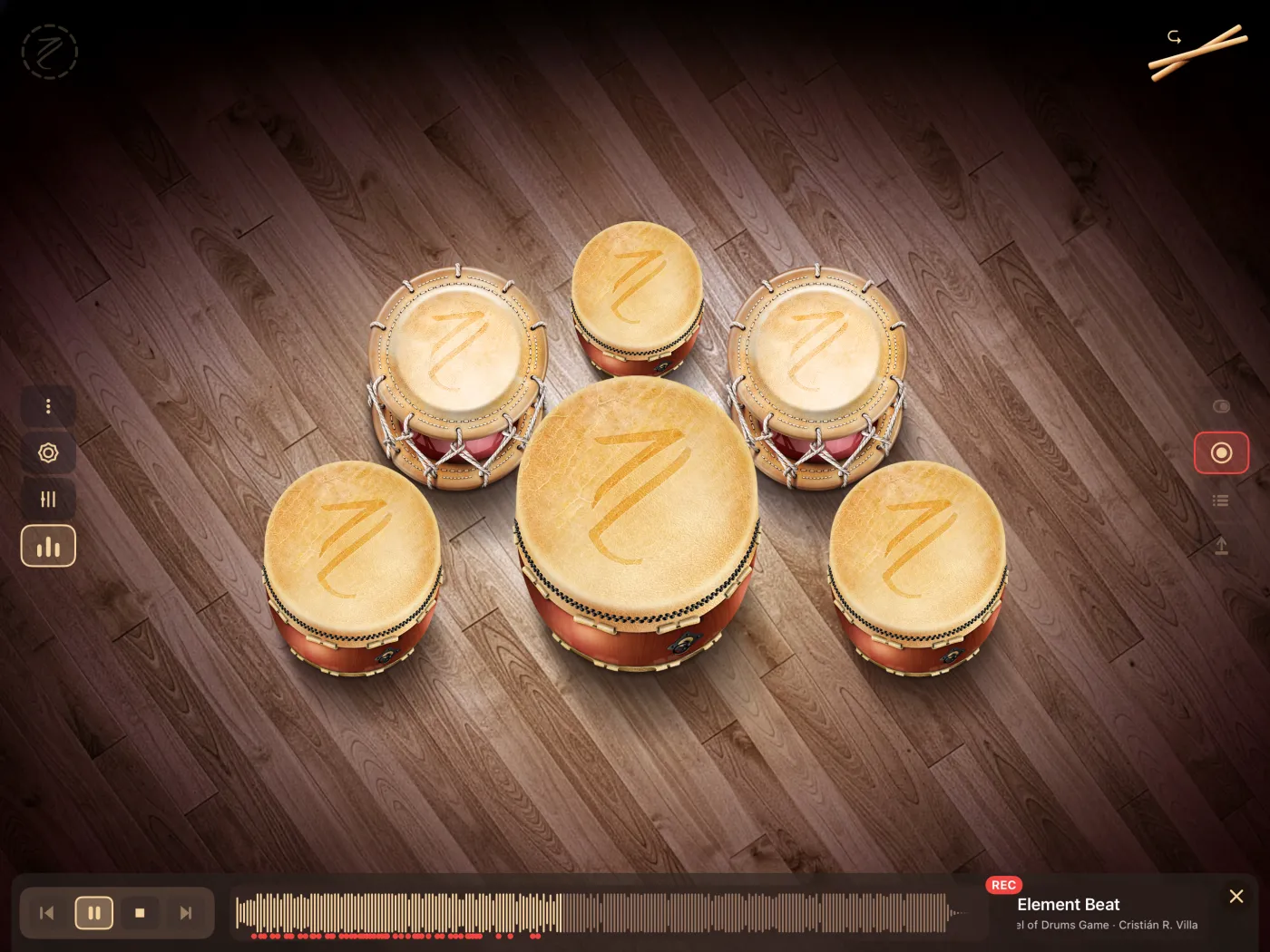
If the song has no takes yet, recording starts right away and is saved as V1.
Hits are only recorded while the song is playing. If you pause it, the hits you play are not added to the take.
If the song already has takes
When you tap Record, the Record Take dialog asks How do you want to record this take? The options apply to the selected take (or the most recent one, if none is selected):
| Option | What it does |
|---|---|
| Record over the current take | While you record, you hear the existing take and your new hits are added to it. It keeps the same version number. |
| Erase and re-record | Erases the hits in that take and records it from scratch, with the same version number. The erase happens as soon as you choose this option. |
| New Version | Leaves the previous take untouched and creates a new one with the next number (V2, V3…). |
| Cancel | Closes the dialog without recording. |
Ending the take
The take ends and is saved when:
- You tap Record again. The song stops.
- The song reaches the end.
If you finish without playing a single hit, the take is not saved.
What's locked while you record
To keep the take consistent, while you record you can't:
- Change the song (the previous and next buttons, and the song name on the bar, are disabled).
- Change the drum layout. Each take remembers a single layout; see Drums and layouts.
- Open the recordings list or export.
- Turn off the playback switch. If you try, you'll see Stop recording before turning the switch off.
When recording starts, settings and the mixer also close if they were open.
Markers on the waveform
While you record, each hit shows up as a red dot under the song's waveform, at the spot where you played it. This lets you see at a glance where you played.
When you're not recording, the dots show the selected take. If the playback switch is off, they look dimmed.
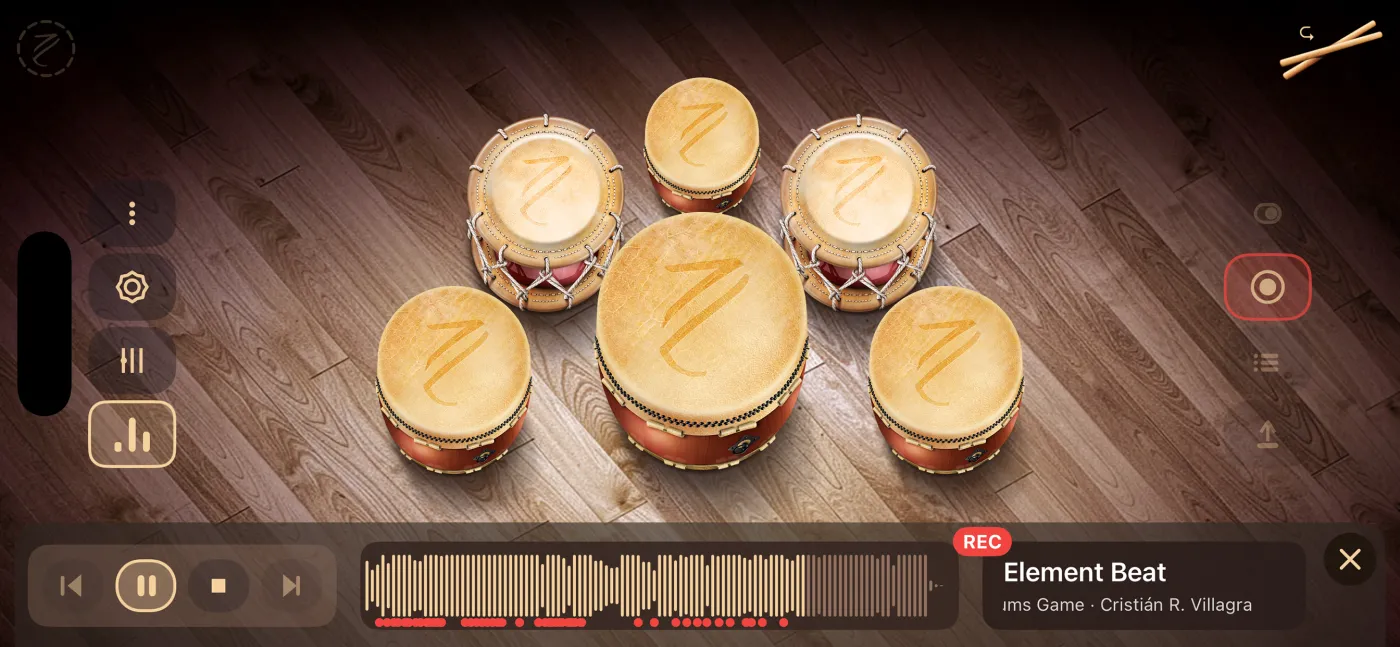
Simple and Flam while recording
You can switch between Simple and Flam while recording. The take saves each change and when you made it, and when you play the take back, the app switches modes again at those same points. More about the modes in Flam.
Next
- Listen to, choose or delete takes: Takes and versions.
- Get the take out as an audio file: Exporting.