
Getting started
This chapter walks you through the main screen, your first hit and your first song.
Opening the app
When you open Taiko Drums, the logo animation plays for a few seconds and then the drum screen appears. The app works in landscape only: turn your iPhone or iPad sideways.
The first time, a guided tour starts by itself and shows you each button. Follow it with Next, or close it with the X. You can see it again later from About. See Tour and About.
The screen
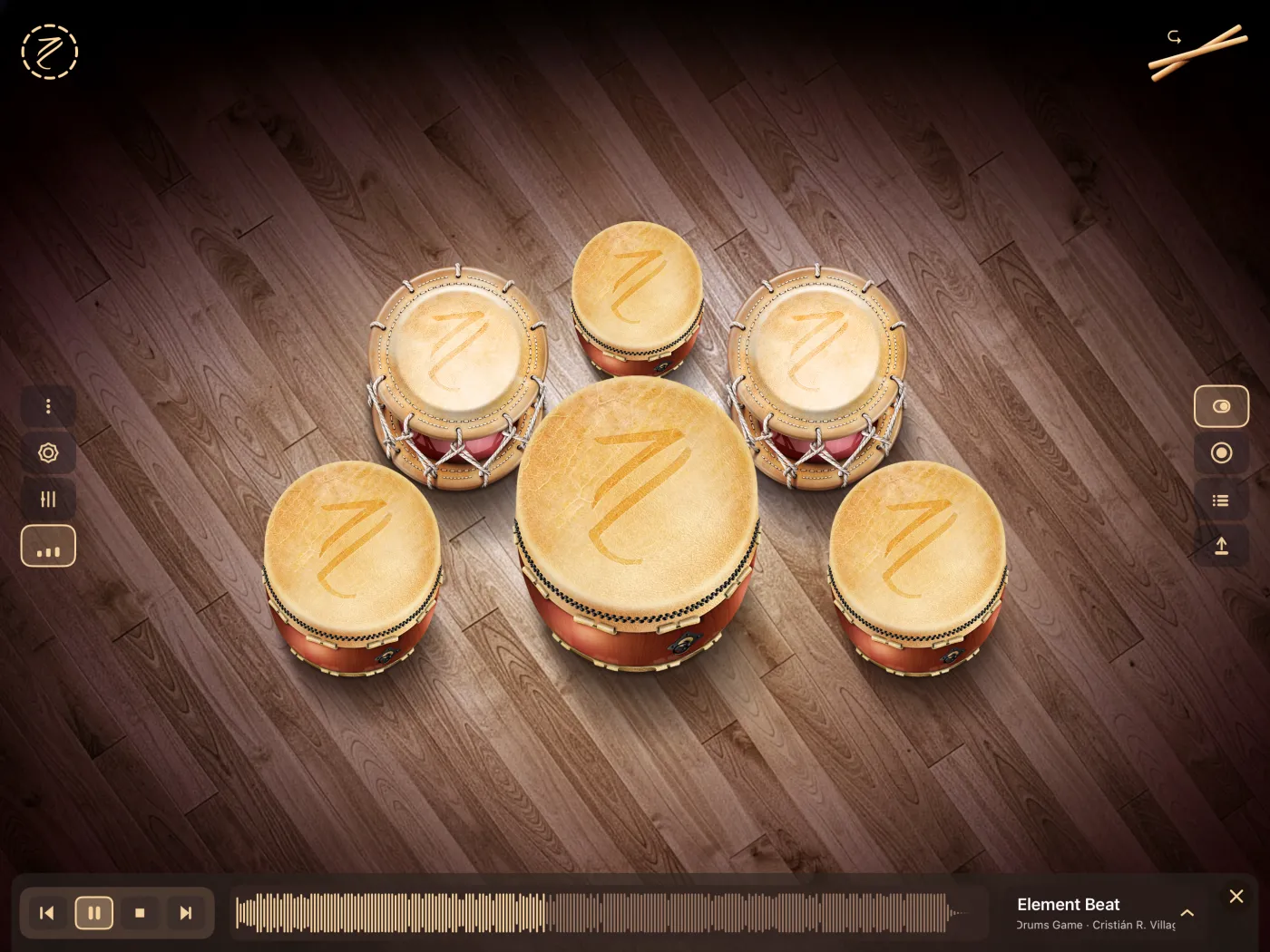
- Drums, in the center. This is where you play.
- Layout selector, top left (the round button with the logo). It opens the 3 drum layouts. See Drums and layouts.
- Flam button, top right (the drumsticks). It switches between simple hits and flam. See Flam.
- Left column, four buttons from top to bottom:
| Button | Icon | What it does |
|---|---|---|
| About | Three dots | Opens the About screen: what's new, credits and the tour. See Tour and About. |
| Settings | Gear | Opens MIDI Settings: MIDI output, channel and note map. See MIDI output. |
| Mixer | Faders | Opens the volume of the drums and of the song. See Mixer. |
| Play-along track | Waveform bars | Shows or hides the track bar. See Play along. |
- Right column, four buttons from top to bottom:
| Button | Icon | What it does |
|---|---|---|
| Playback | Switch | Turns recording mode on or off. It's on when you open the app. When it's off, you can't record or play your recordings. |
| Record | Circle | Starts or stops a recording. See Record. |
| Recordings list | List | Shows the takes of the current song. See Takes and versions. |
| Export | Arrow up | Saves a take as a WAV file. See Export. |
- Track bar, at the bottom, hidden until you open it. From left to right: the playback controls (previous, play/pause, stop, next), the song's waveform, the song's name, and a button to close the bar.
When a button in the left column has its panel open, it shows a highlighted border.
Your first hit
- Tap the head of any drum, the round top part.
- The drum sounds and grows a little for a moment.
- Try several drums at once: you can use as many fingers as there are drums.
Only the drum head responds to touch. All hits sound at the same volume, however hard you tap and wherever you touch the head.
If you don't hear anything, check the device volume and the Mixer. See Troubleshooting.
Your first song
- Tap Play-along track (the last button in the left column). The track bar appears at the bottom.
- The bar shows the selected song. The first time, it's one of the 5 songs included with the app.
- Tap play in the bar. The song starts.
- Play the drums along with it.
- To change songs, tap the song's name in the bar and choose another one from the list, or use previous and next.
- If the song covers the drums too much, open the Mixer and lower the song.
Close the bar with the X on its right, or with the same Play-along track button. Closing the bar doesn't stop the song: use stop or pause first if you want silence.
Next steps
- Choose another set of drums in Drums and layouts.
- Load your own audio in Your own songs.
- Record what you play in Record.
- Control a synth or a DAW with MIDI output.