
Mixer
The mixer sets the balance between your drums and the song you're playing along with. It has two vertical faders: one for the drums and one for the song.
Opening the mixer
In the column of buttons on the left side of the screen, tap the Mixer button (the third one, with the slider icon). The mixer opens right next to the column.
To close it, tap the × button at its top right corner, or tap the Mixer button again.
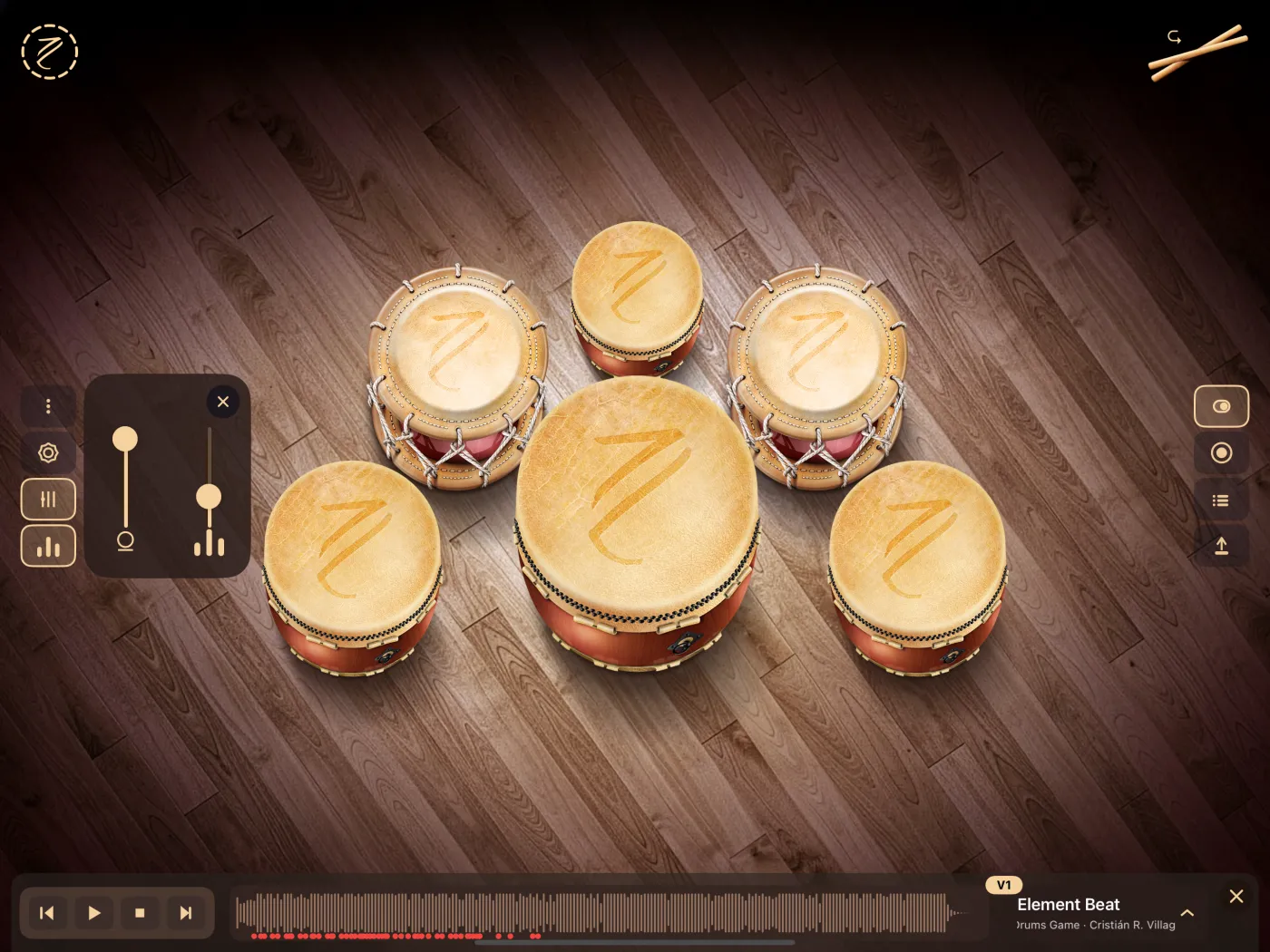
The mixer and the track bar can be open at the same time, so you can adjust the volume while the song plays. Opening Settings or About closes the mixer.
The two faders
| Fader | Icon below it | What it controls |
|---|---|---|
| Left | Drum | Volume of the drums you play, and of the hits of a take when it plays back. |
| Right | Three bars | Volume of the play-along song. |
- Drag a fader up to raise the volume and down to lower it.
- Each fader goes from silence (all the way down) to full volume (all the way up).
- The change is heard immediately, even while the song is playing.
Starting values
The first time you use the app:
- Drums: full volume.
- Song: one quarter of the way up, so the drums stand out over the music.
Your settings are saved
Taiko Drums remembers where you leave both faders. The next time you open the app, they're in the same position.
This includes silence: if you leave a fader all the way down, it stays that way.
The animated indicator
The Play-along track button (the last one in the left column) shows three small bars. While a song is playing, the bars move up and down; when the song is paused or stopped, they stay still. This tells you at a glance whether the song is playing, even with the track bar closed.
The three-bar icon under the song fader in the mixer is just a label and doesn't move.
More about the song and its controls in Playing Along with Songs.