
Playing Along with Songs
Play-Along lets you play the drums over a song. The song plays through a bar at the bottom of the screen, and the drums keep working as usual on top of it.
Opening the track bar
In the column of buttons on the left side of the screen, tap the last button (Play-along track, the one with three small bars). The track bar slides up from the bottom.
Tap the same button again to hide it.
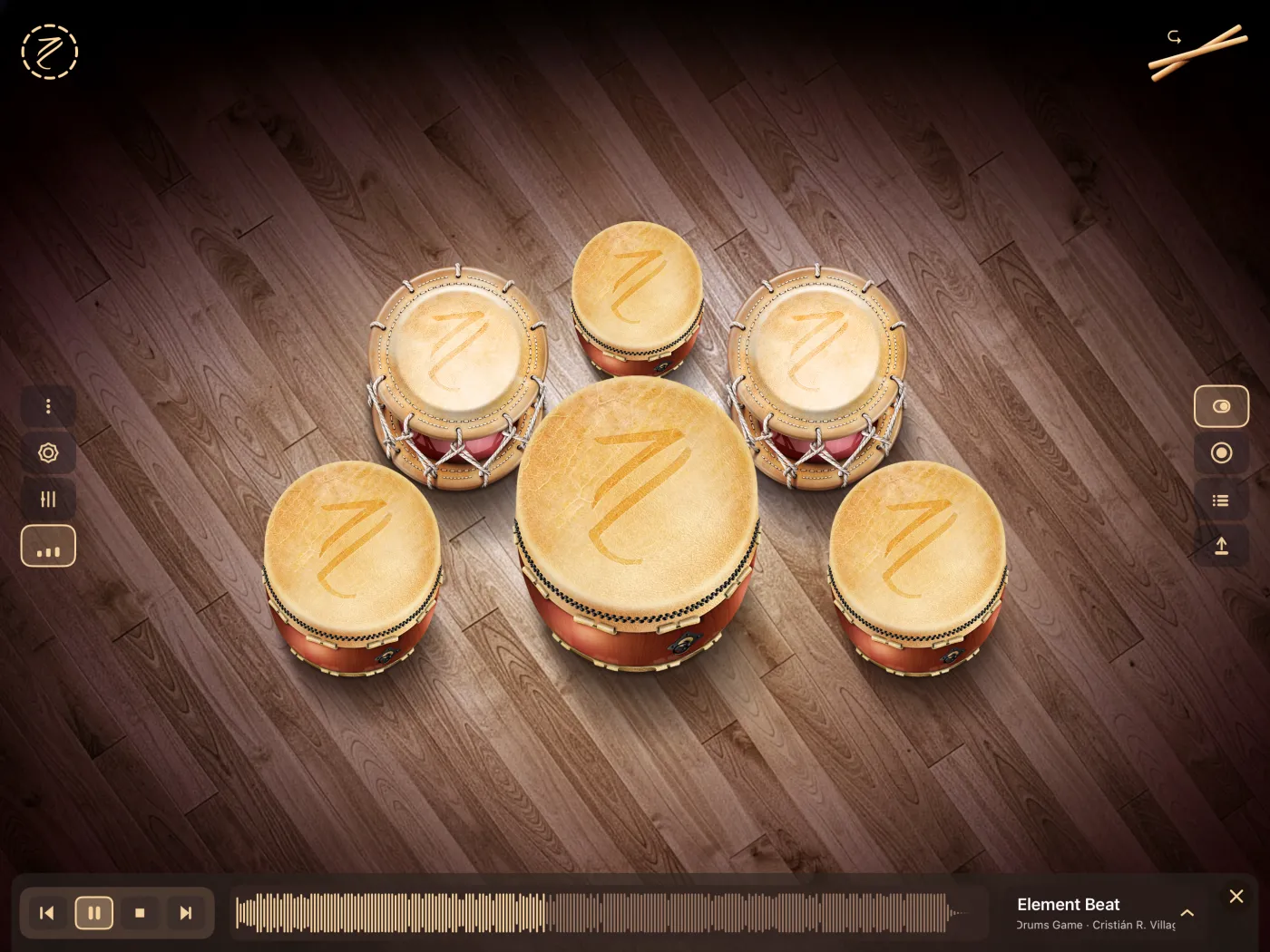
The bar has three parts, from left to right:
- Transport: previous, play/pause, stop and next.
- Waveform of the current song.
- Song name: the title and a subtitle. Tap it to open the song list.
Choosing a song
- Tap the song name on the right side of the bar.
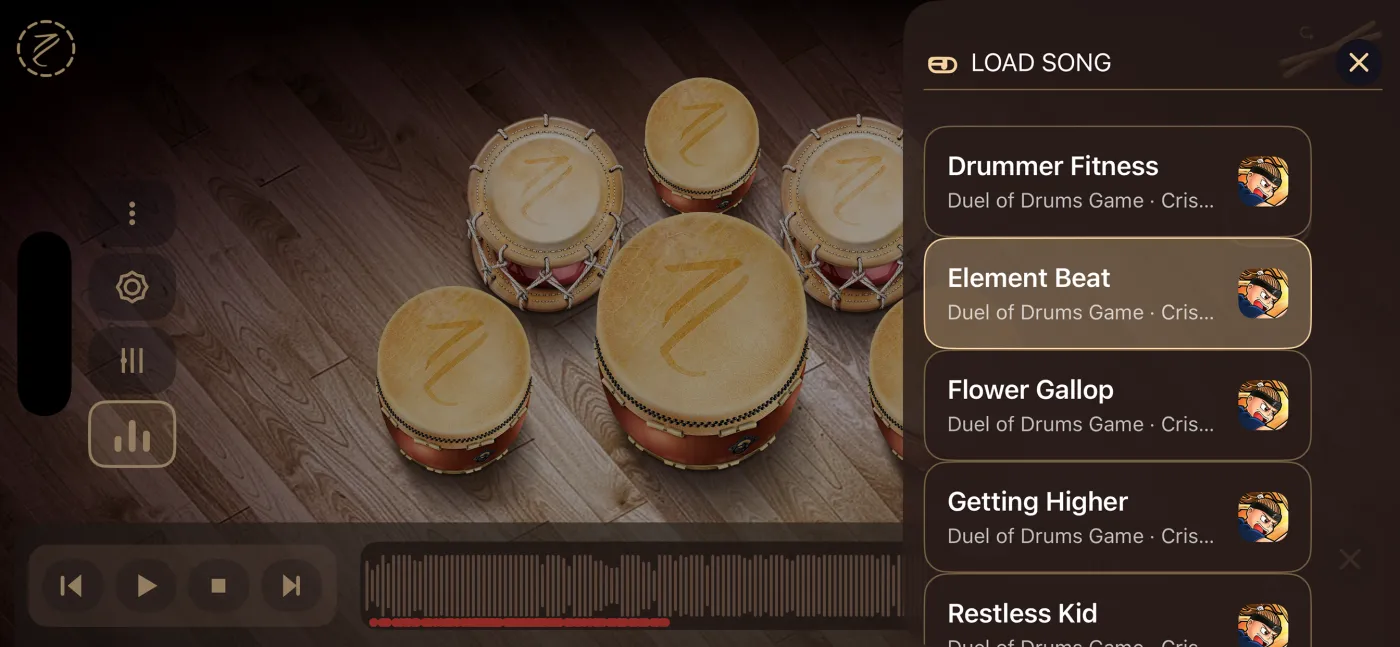
- The song list opens on the right side of the screen.
- Tap a song. It becomes the current song and the list closes.
If a song was already playing, the new one starts right away. If not, it stays ready until you press play.
To close the list without choosing, tap the × button at the top of the list or tap anywhere outside it.
The included songs
Taiko Drums comes with 5 songs from the game Duel of Drums, by Cristián R. Villagra. They always appear first in the list, in this order:
| # | Song | Length |
|---|---|---|
| 1 | Drummer Fitness | 1:33 |
| 2 | Element Beat | 1:35 |
| 3 | Flower Gallop | 1:49 |
| 4 | Getting Higher | 1:55 |
| 5 | Restless Kid | 1:45 |
Songs you import yourself appear below them. See Your Songs.
Transport
| Button | What it does |
|---|---|
| Previous | Jumps to the previous song in the list. |
| Play / Pause | Starts or pauses the song. While it plays, the button is highlighted and shows the pause icon. |
| Stop | Stops the song and goes back to the beginning. |
| Next | Jumps to the next song in the list. |
- Previous and next go around the list: after the last song comes the first one, and before the first comes the last.
- Previous always changes the song; it doesn't go back to the start of the current one.
- If the song was playing, the next or previous song starts playing too.
- While you are recording, previous, next and the song name are disabled, so you can't change songs in the middle of a take. Play/pause and stop still work.
The waveform
The waveform shows the whole song. The part already played is drawn in a different color, so you can see where you are.
- Tap a point on the waveform to jump there.
- Drag your finger along it to move through the song. The position follows your finger.
Moving works on a song that is already loaded. If you just chose a song and haven't played it yet, press play first.
When you open a song, the waveform may take a moment to appear. Meanwhile you'll see Drawing audio....
Hit markers
Small dots along the bottom of the waveform show where the hits of a take fall in the song:
- While you record, a dot appears for each hit.
- When you select a saved take, its hits are shown. The dots are red when take playback is on, and dimmed when it's off.
More about takes in Takes and Versions.
When the song ends
When a song reaches the end, it stops and goes back to the beginning. It doesn't jump to the next song and doesn't loop.
If you were recording, the take is saved automatically.
Closing the bar
Tap the × button at the top right of the bar, or tap the Play-along track button again. The bar hides, and if the song list or the recordings list was open, it closes too.
Closing the bar doesn't stop the song: if it was playing, it keeps playing.
On iPhone, the drums move up slightly while the bar is open and go back to their place when you close it.
The last song is remembered
Taiko Drums remembers the last song you chose. The next time you open the app, that song is already selected (it doesn't start playing by itself).
If that song no longer exists, for example because you deleted it, the first song in the list is selected.