
Takes and versions
Each song keeps its own takes. You can have several versions of the same song, choose which one to hear, and delete the ones you don't want.
The recordings list
Tap the Recordings list button (the third one in the column on the right) to open the RECORDINGS panel.
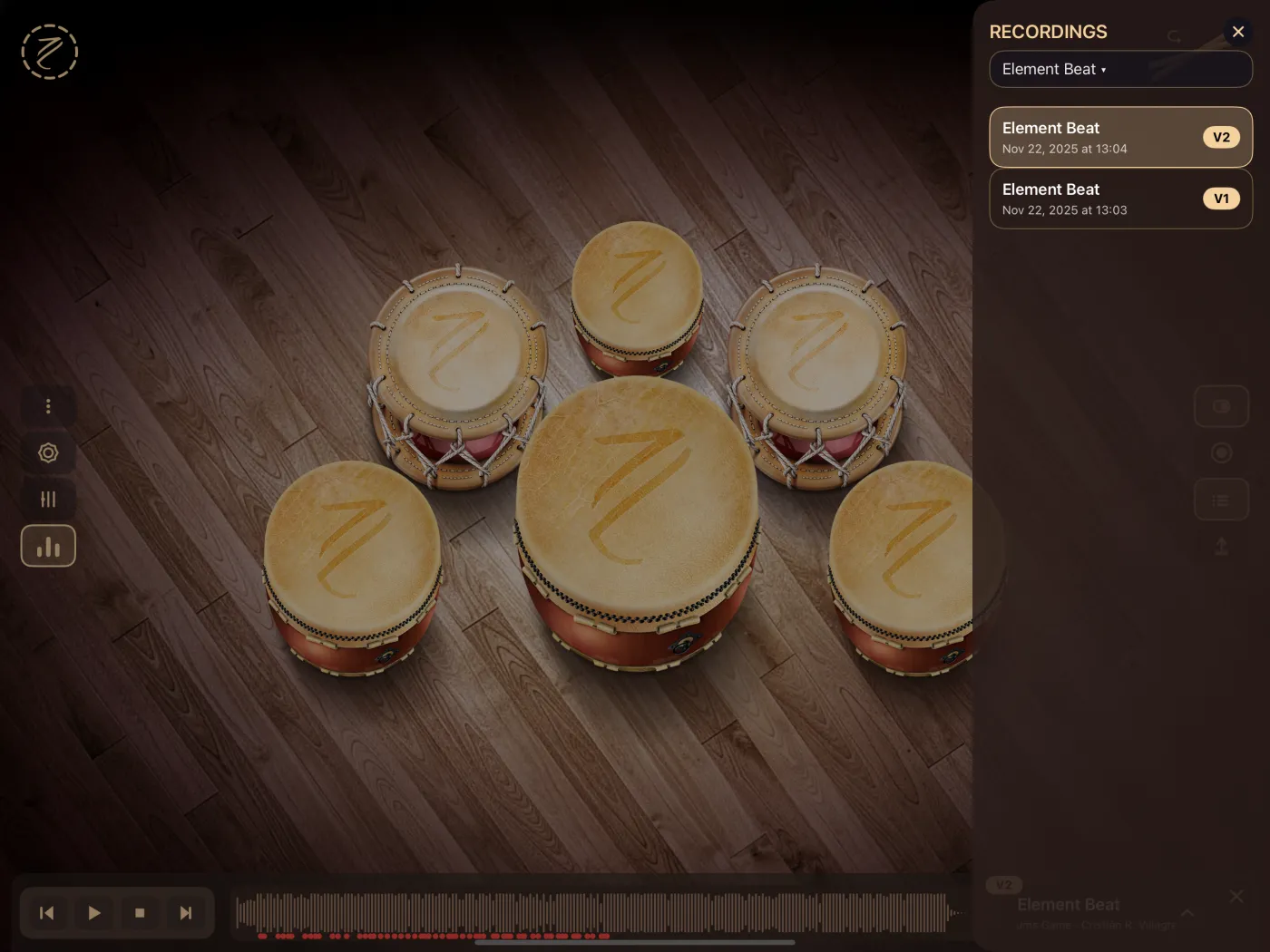
- At the top is the song selector. It shows the current song; tap it to see the others. Songs that have takes show how many.
- Below are that song's takes, newest first. Each row shows the song name, the date and time of the take, and its version (V1, V2…).
- The selected take is highlighted.
- If the song has no takes yet, you'll see No recordings yet. Hit Record to capture your performance.
To close the panel, tap the X or anywhere outside it.
Versions
- A song's first take is V1. Each New Version gets the next number.
- Record over the current take and Erase and re-record keep the number of the take you're changing. See Recording.
- Versions are counted per song: every song has its own V1.
- If you delete the highest version, that number becomes free again. For example, if you have V1 and V2 and delete V2, the next new take will be V2 again.
Choosing a take
In the list, tap the take's row. When you choose it:
- It becomes the selected take and the panel closes.
- The playback switch turns on.
- If the take was recorded with a different drum layout, the app switches to that layout. See Drums and layouts.
- The red dots under the waveform show that take's hits.
The label on the song bar
On the song bar, next to the name, there's a small label:
| It shows | Meaning |
|---|---|
| REC | You're recording. |
| V1, V2… | The version of the selected take. It looks dimmed if the switch is off. |
| A number | The song has that many takes, but none is selected. |
| Nothing | The song has no takes. |
When you tap the label:
- If a take is selected, it gets deselected.
- If none is selected, Select a take opens, with one row per version (Version 1 · date, and so on).
While you're recording, tapping the label does nothing.
The playback switch
It's the first button in the recording column. It decides whether you hear your take along with the song:
- On (the default): when the song plays, the app plays the selected take's hits at their moment, animating the drums, and repeats the switches between Simple and Flam. If MIDI Out is on, those hits are also sent over MIDI.
- Off: the song plays on its own and the dots on the waveform look dimmed. The record, list and export buttons show Turn on the switch to listen or manage recordings.
You can't turn it off while recording. While a take is playing, the layout selector is disabled.
You can jump to any point in the song: the take continues from there, in the Simple or Flam mode that applied at that moment.
Deleting a take
- Open the recordings list.
- Swipe the take's row to the left and tap Delete (or swipe all the way).
- Confirm in Delete Recording. The message shows the take's name and date.
Deleting can't be undone.
If you delete a song you imported, all its takes are deleted too. See Your own songs.
Latency compensation
Between the moment the song plays and the moment you hear it there's a tiny delay, built into the device's audio. Since you play along with what you hear, your hits get recorded a little later than you meant.
- When you listen to the take in the app, nothing is adjusted: the hits play just as you played them.
- When you export, the app moves the hits earlier by that same delay so the file stays in time with the song. There's nothing to set up.